Running your first Customer AML Screening Agent
Last updated: July 22, 2025
Introduction
The Individuals AML Screening Agent is a comprehensive compliance tool that helps you perform Anti-Money Laundering (AML) checks on individuals. This agent combines multiple verification steps to provide a thorough risk assessment, including web presence verification, adverse media screening, politically exposed persons (PEP) checks, and sanctions screening.
This guide will walk you through creating and running your first Individuals AML Screening Agent, from initial setup to interpreting the results.
Before You Begin
Before creating an Individuals AML Screening Agent, ensure you have:
A Parcha account with business verification completed (required for KYC templates)
Basic information about the individuals you want to screen (name, date of birth, location)
Approximately 15 minutes for initial setup and testing
Understanding that each screening consumes credits based on the verification steps selected
Step 1: Verify your business to get access to KYC Agents
Accessing the Agent Hub
Navigate to the Agent Hub from your Parcha home page. Look for the Individuals AML Screening template in the available templates section.
Important: If this is your first time creating a KYC agent, you'll notice a lock symbol in the top right corner of the template. This indicates that business verification is required before you can access KYC templates.
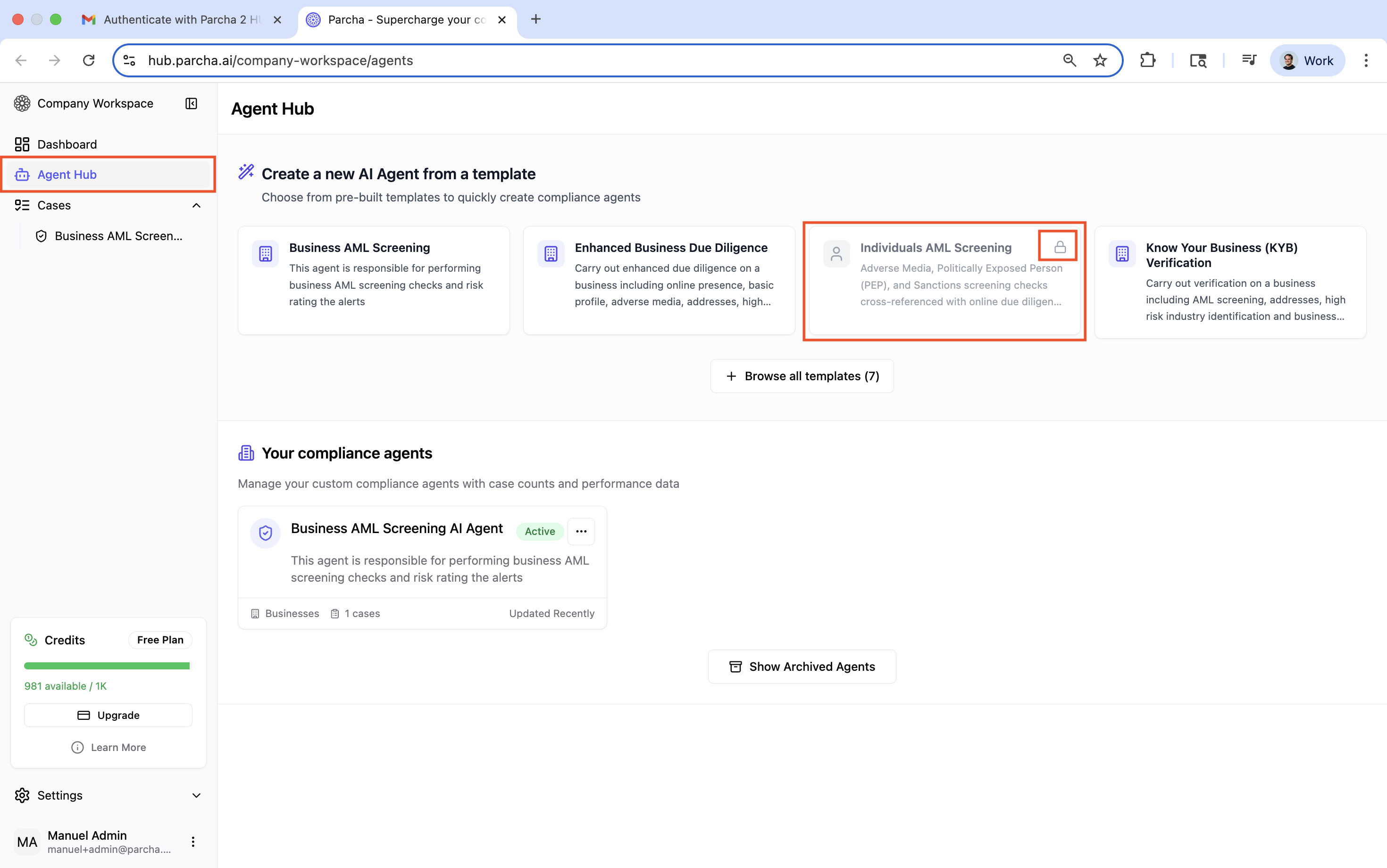
Starting Business Verification
Click on the locked template to begin the verification process. You'll be prompted to provide:
Business information (company name, address, registration details)
Personal information (your name, role, contact details)
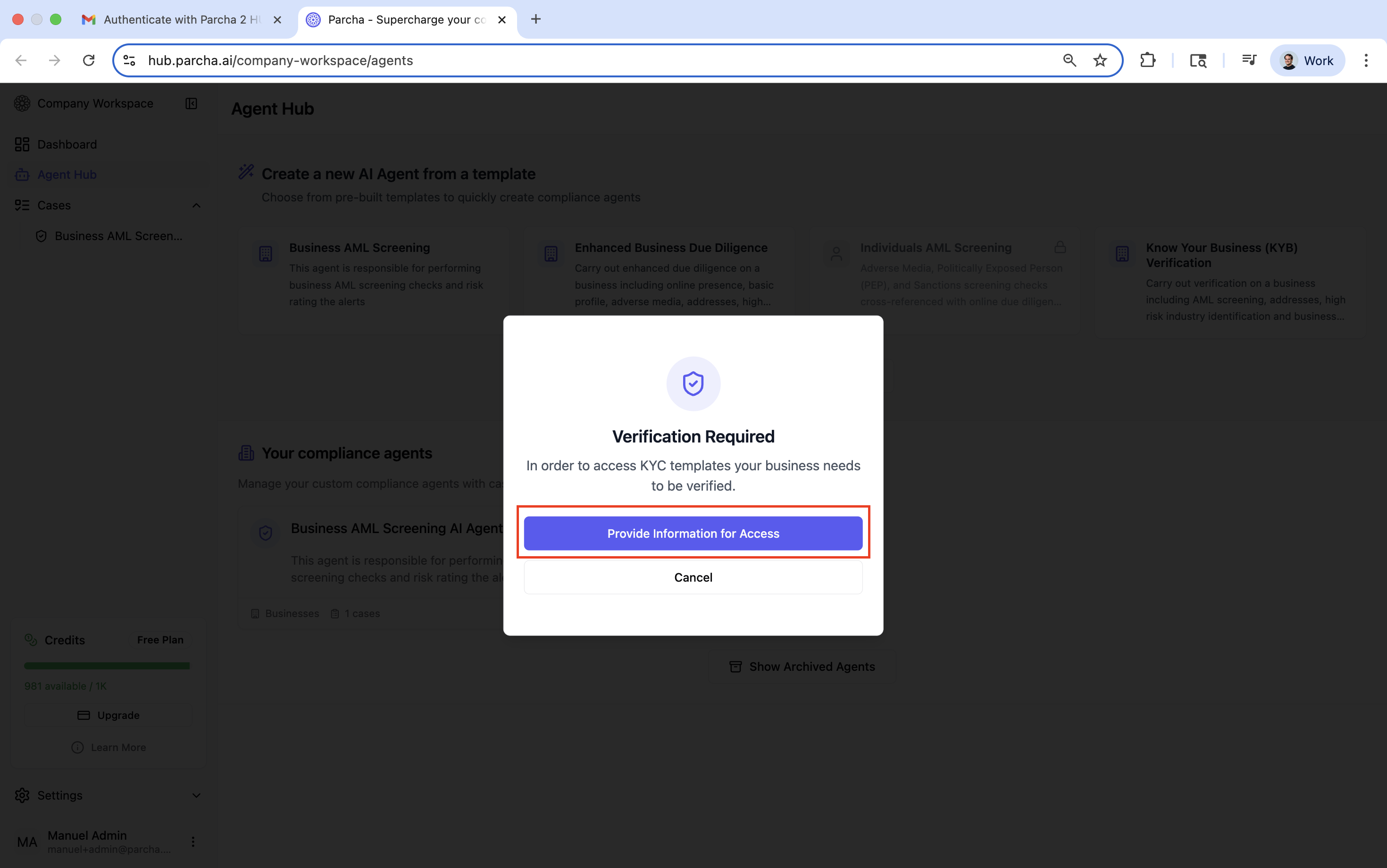
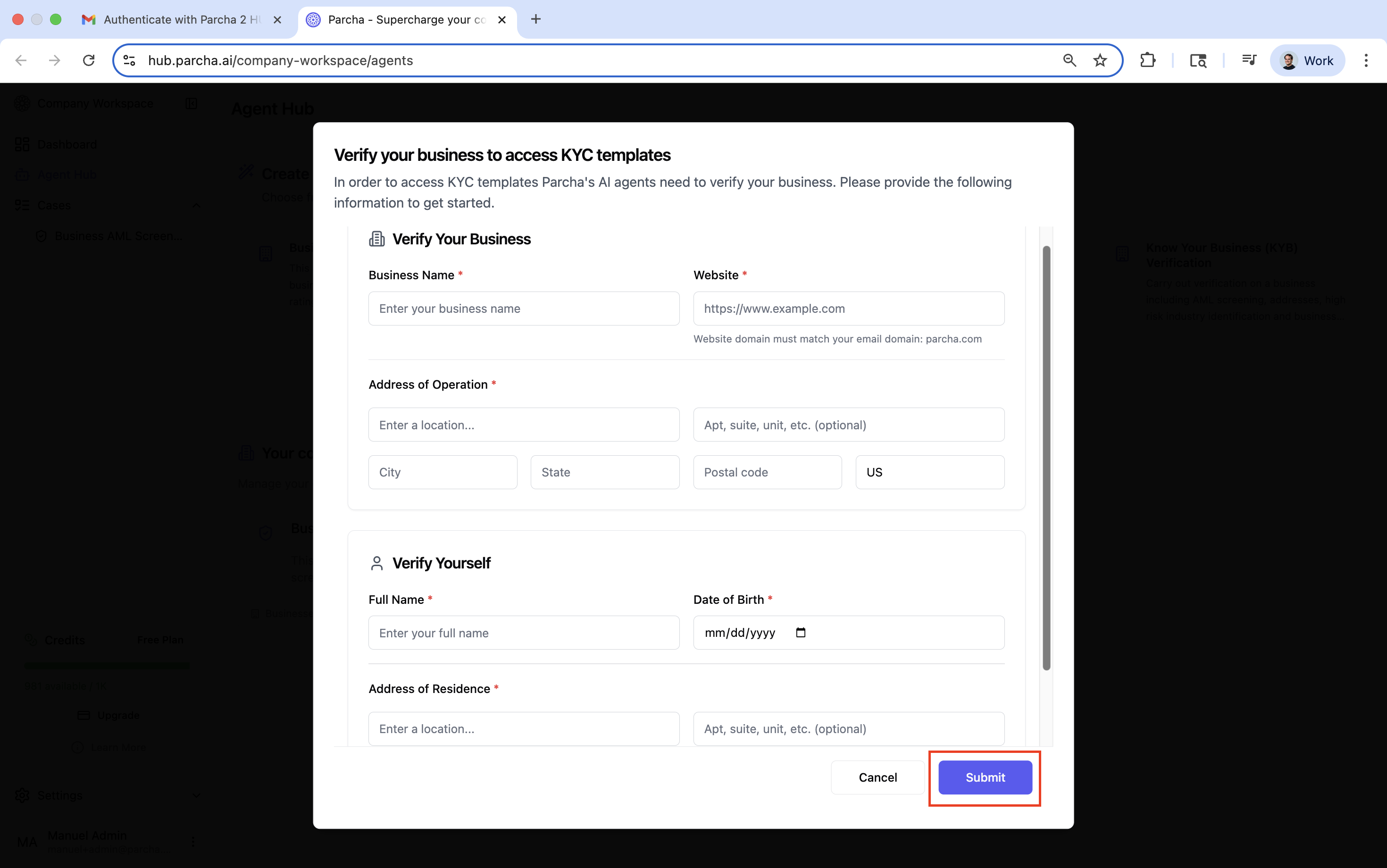
Verification Timeline
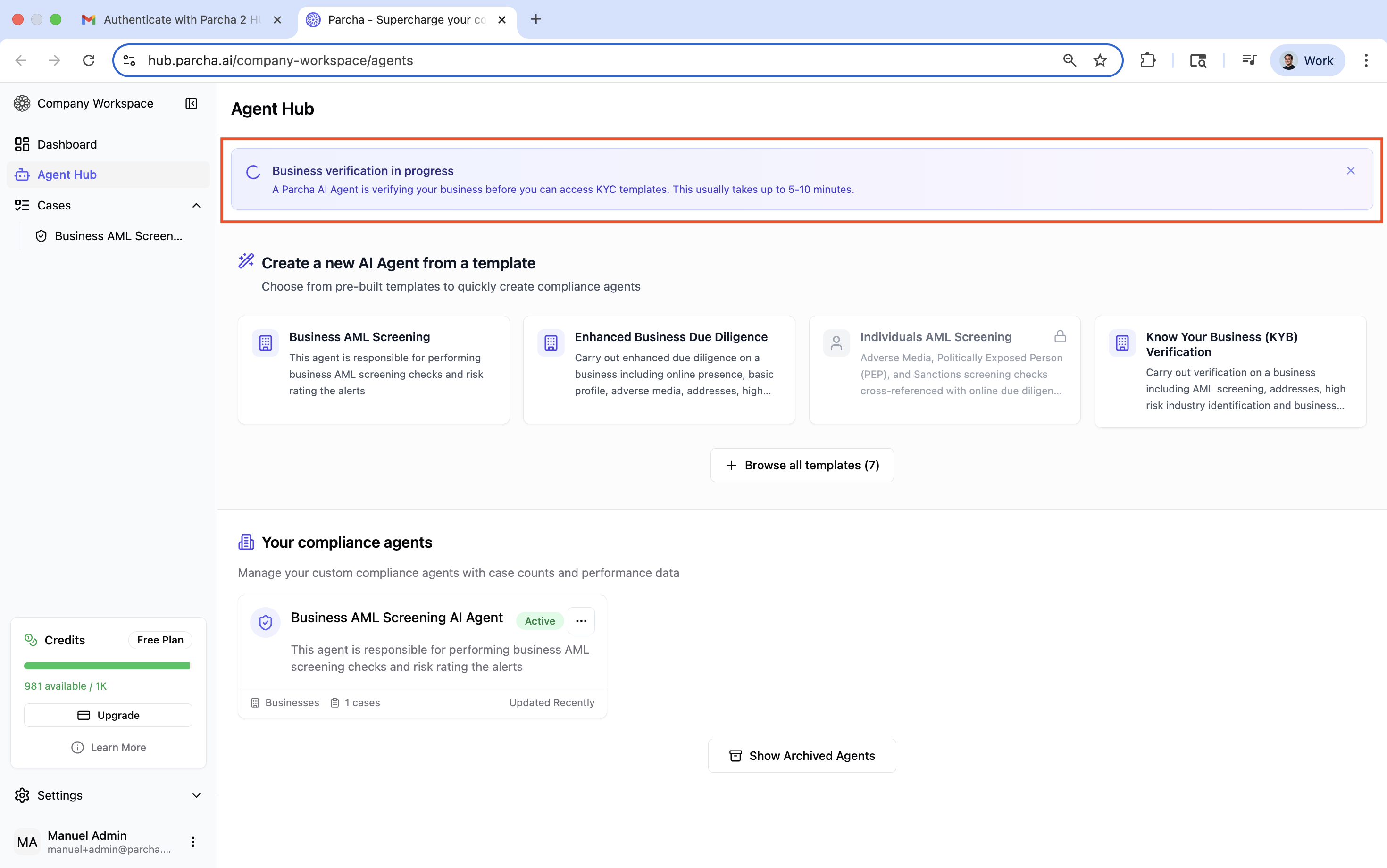
The automated verification process typically takes 5-10 minutes to complete. During this time:
A Parcha AI Agent will verify your business information
You'll see a progress indicator showing the verification status
You can continue using other Parcha features while verification is in progress
Additional Verification
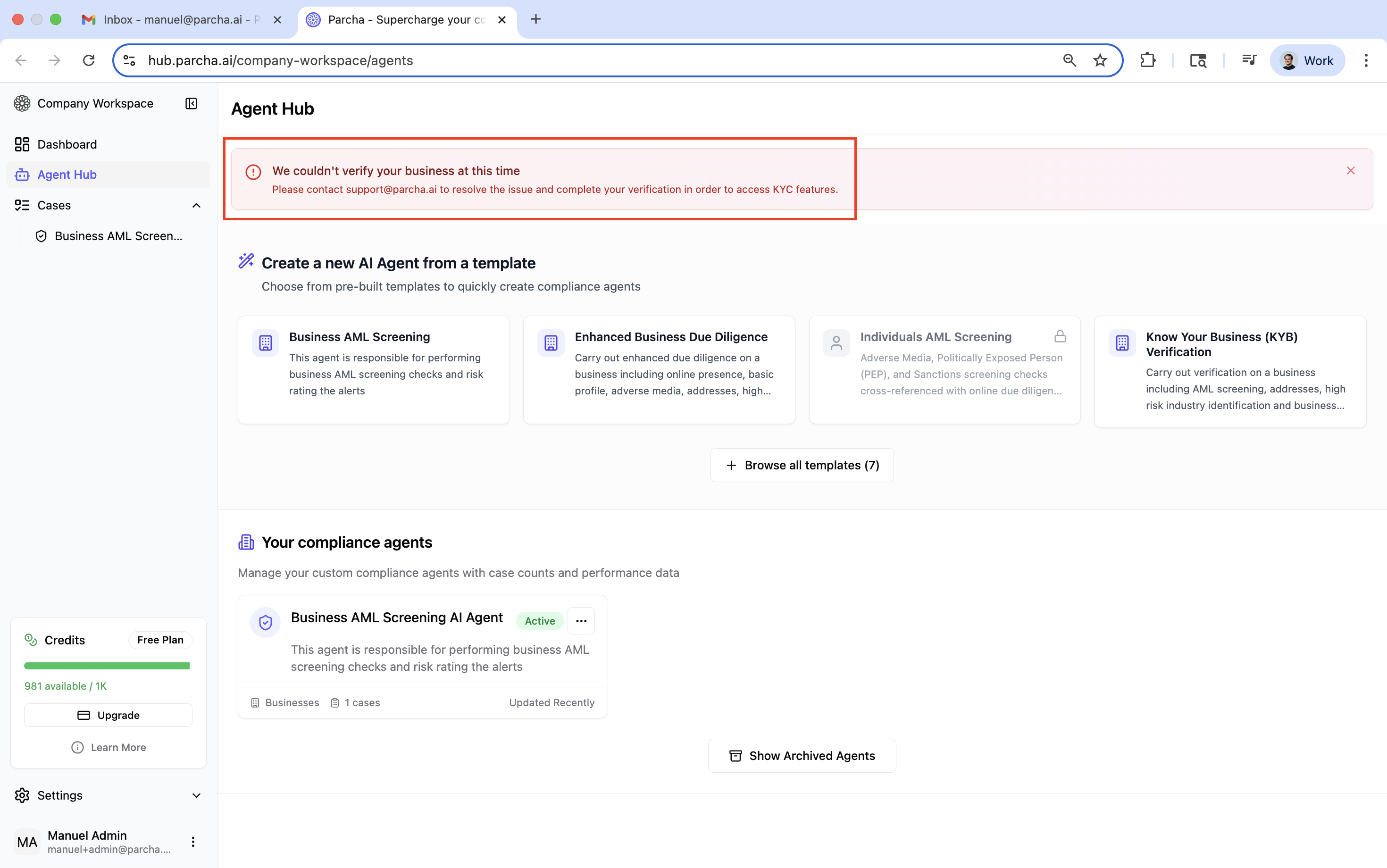
In some cases, additional permission from your employer may be required. If this happens:
You'll receive a notification explaining the additional requirements
Parcha's support team will reach out to complete additional verifications
Access will be granted once confirmation is received (typically within 24 hours)
Verification Complete
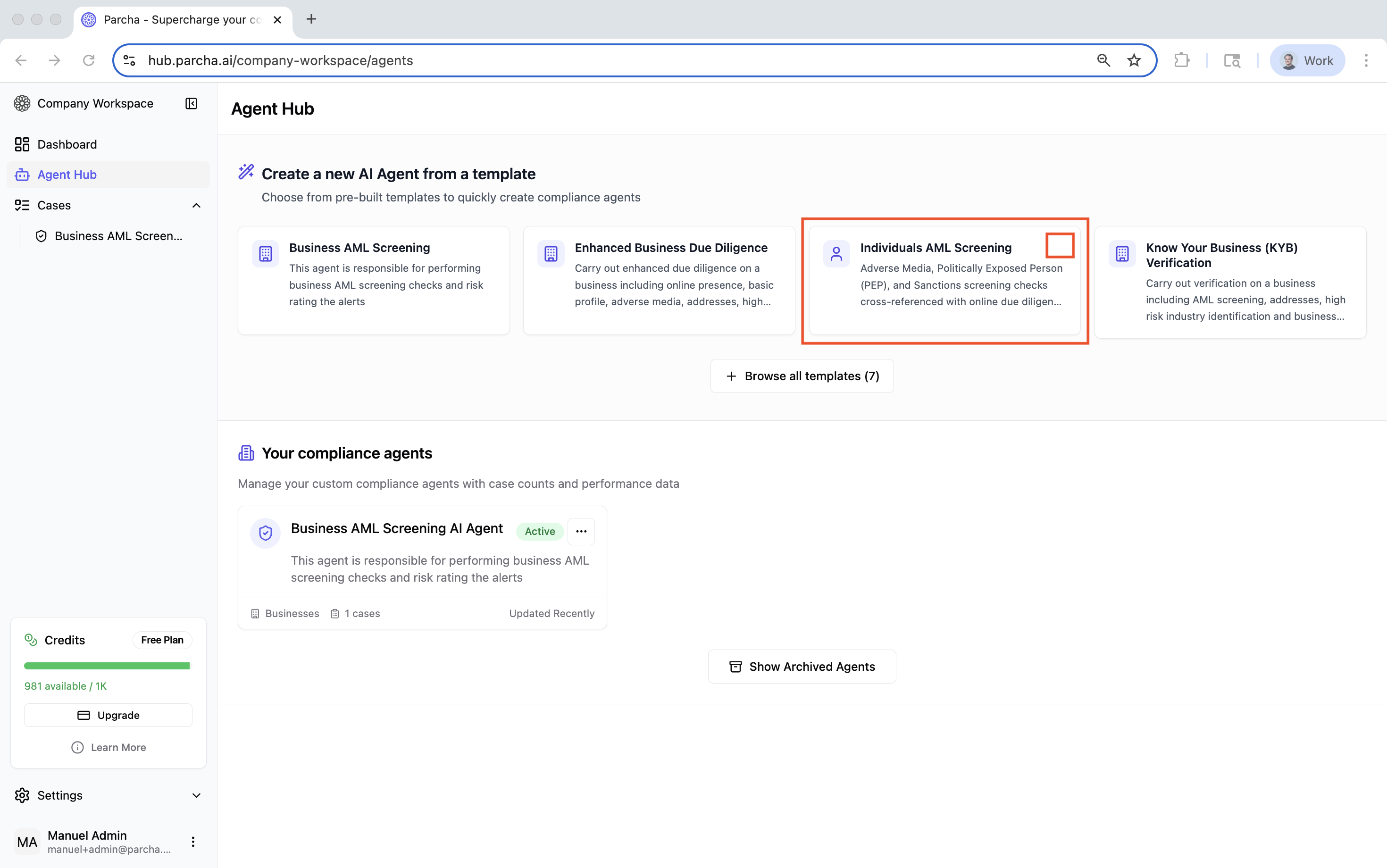
Once verification is successful:
The lock symbol will disappear from the KYC templates
You'll receive a confirmation notification
You can immediately begin creating Individuals AML Screening agents
Step 2: Creating Your Agent - Configuration
Starting Agent Creation
Click on the Individuals AML Screening template to begin. You'll see the agent configuration wizard with several customization options.
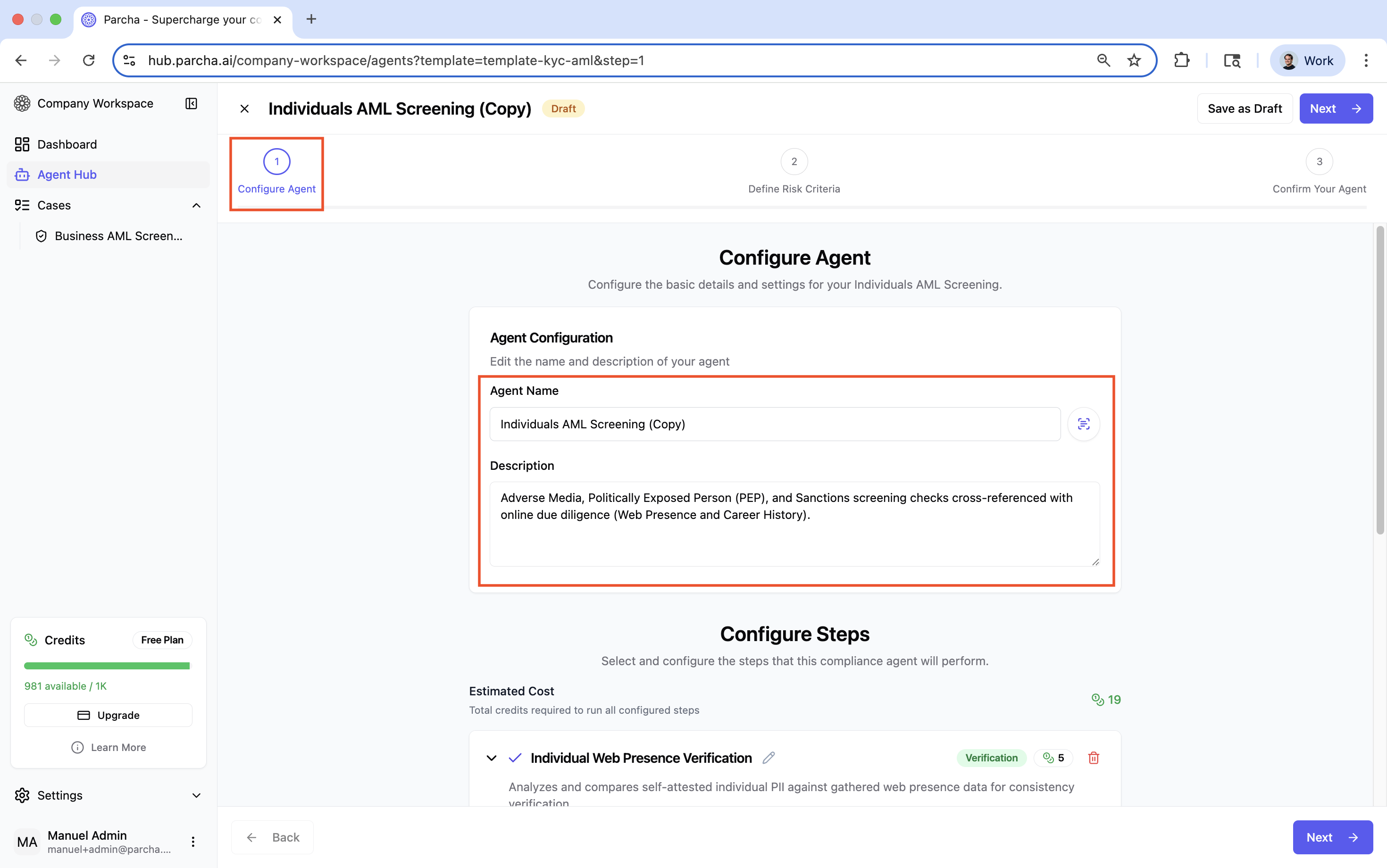
Basic Information
Agent Name: Give your agent a descriptive name (e.g., "Individual KYC Screening - High Risk Markets")
Description: Add a brief description of the agent's purpose and any specific requirements
Adding or Removing Steps
You can customize which verification steps to include:
Click the "+" button to add additional steps
Click the "x" button to remove unnecessary steps
Rename steps to match your internal terminology
Understanding Credit Requirements
Each verification step consumes credits. The configuration screen shows:
Credit cost per verification step
Total credits required per screening
Your current credit balance
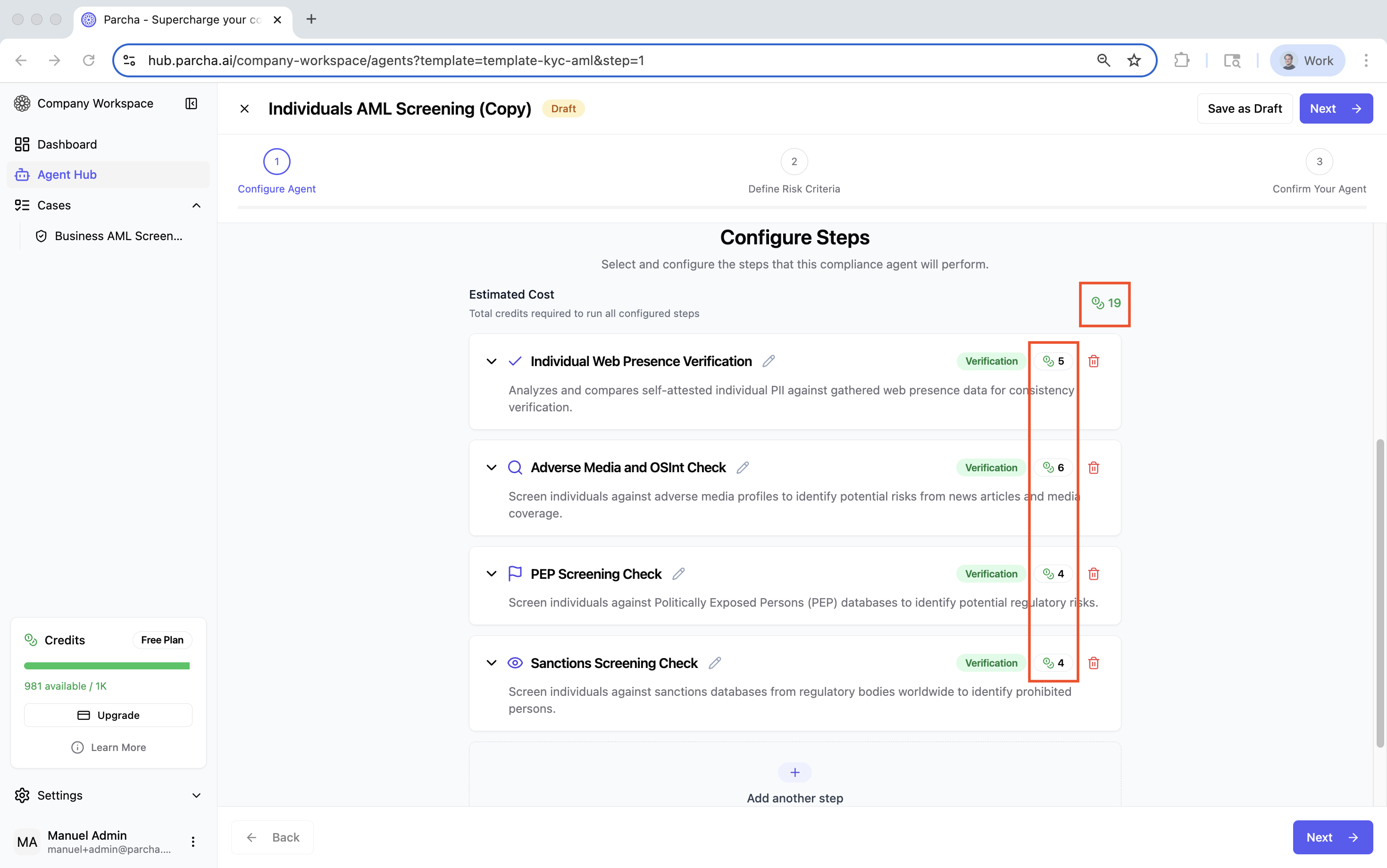
Rename, add, or delete specific steps as needed.
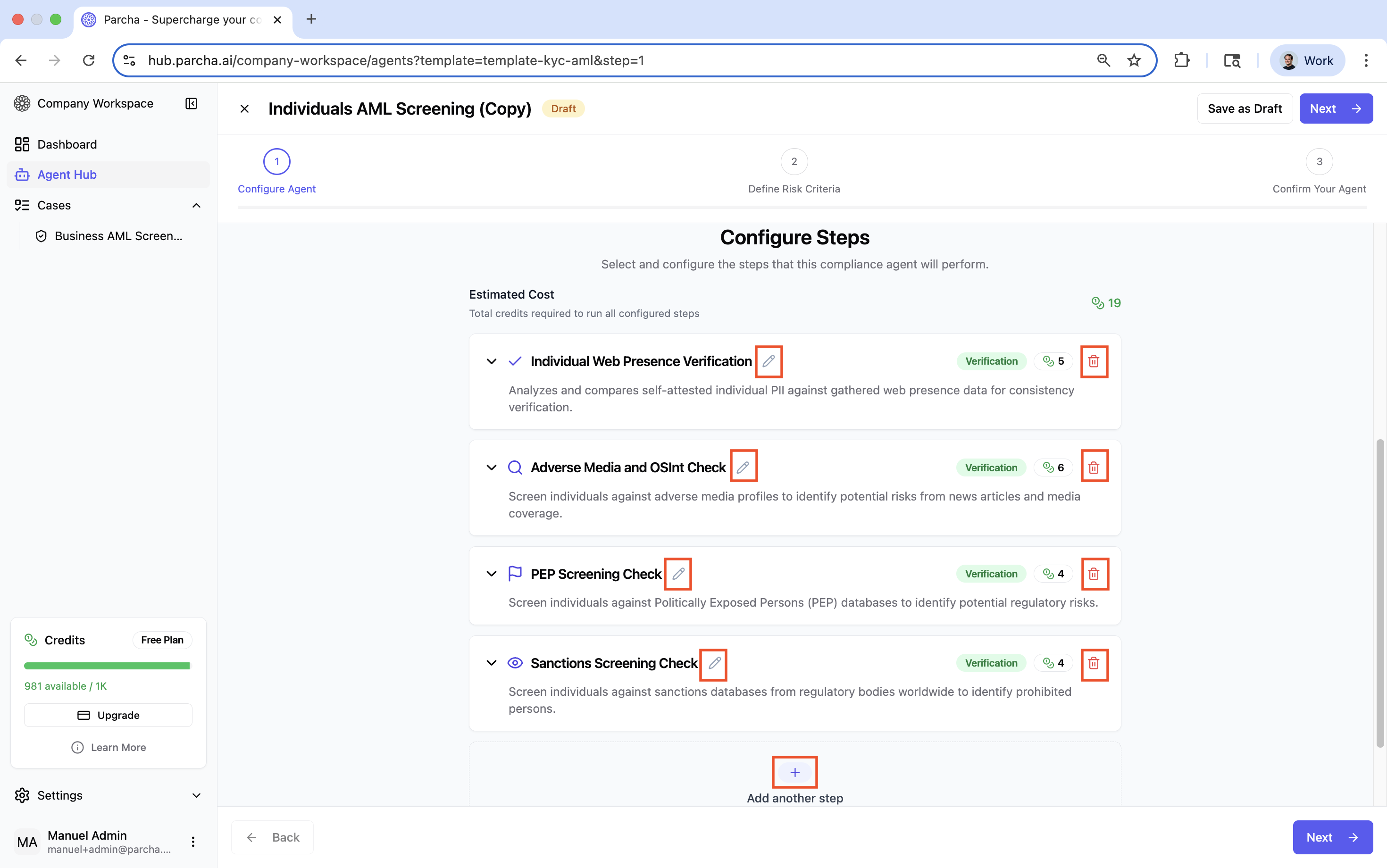
The Individuals AML Screening Agent includes four verification steps that work together:
Individual Web Presence Verification
This step verifies if the individual exists online and gathers publicly available information.
Purpose: Establishes a baseline profile of the individual
Configuration: Typically no configuration needed - runs automatically
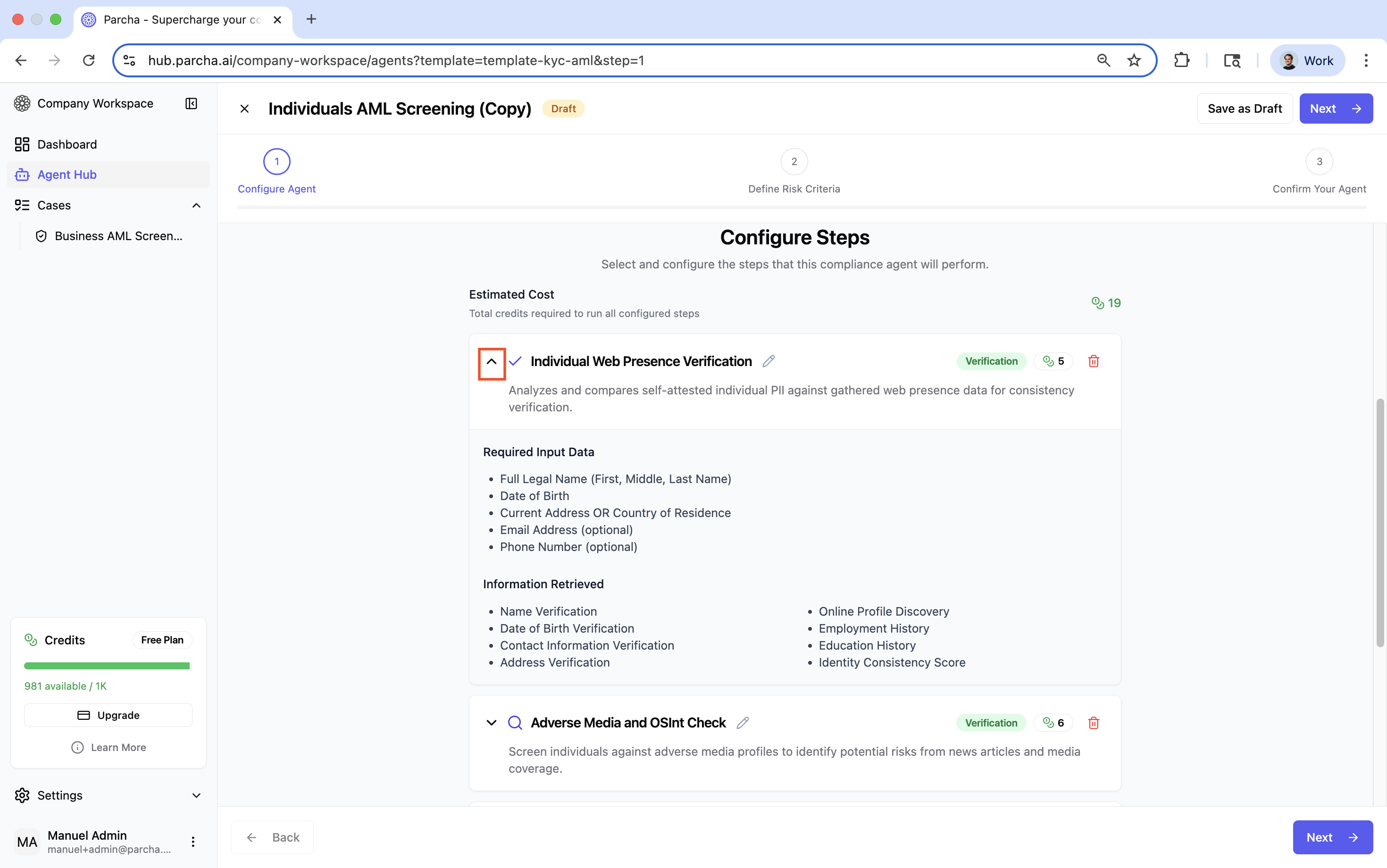
Adverse Media and OSInt Check
Searches for negative news and open-source intelligence about the individual.
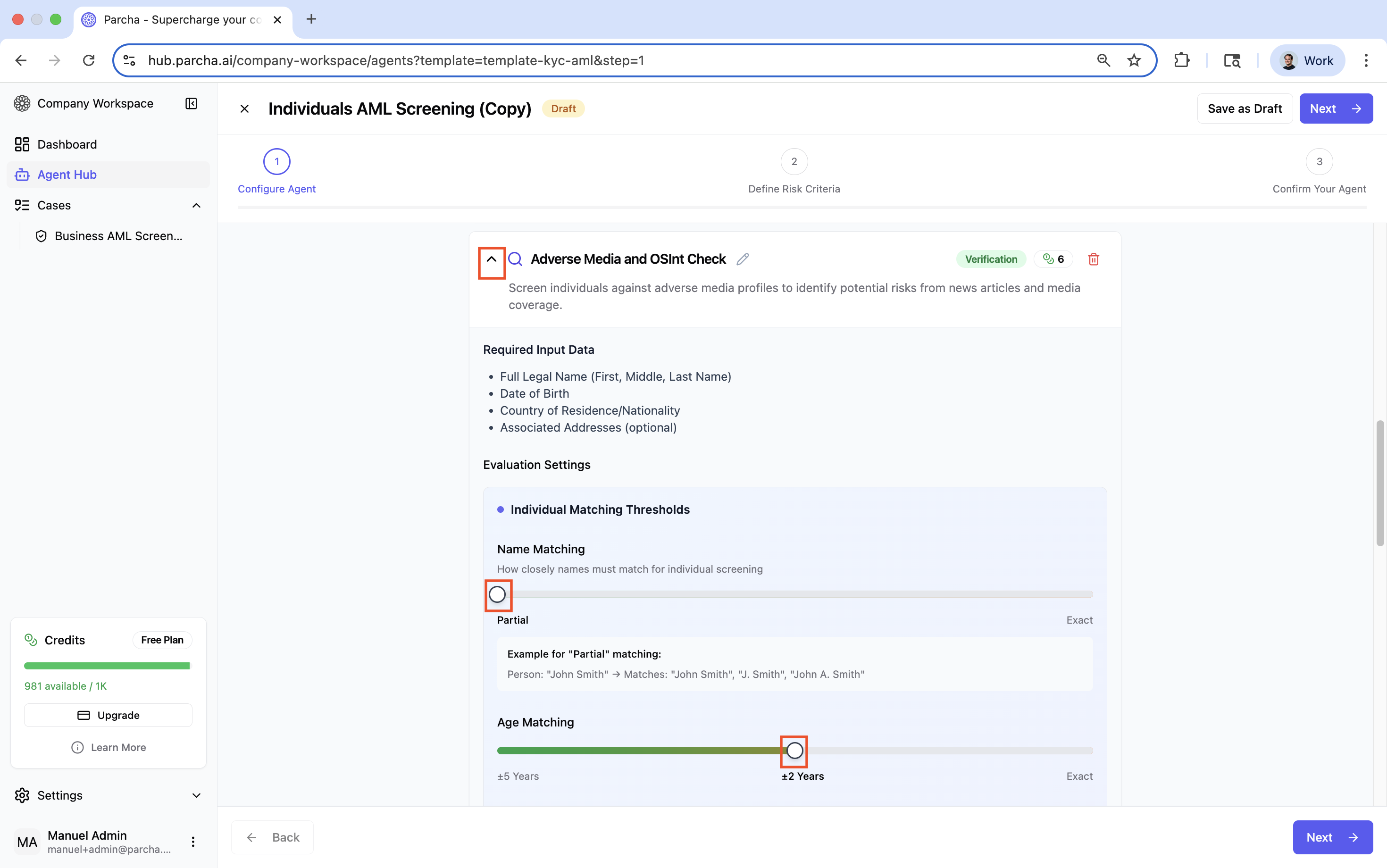
Configuration Options:
Name Matching Threshold:
Partial Match: Allows for variations in name spelling
Exact Match: Requires precise name matching
Age Matching Threshold:
Within 5 years: Broader age range for matching
Within 2 years: Tighter age range
Exact: Requires exact age match
Location Matching:
Country Level: Matches if in the same country
Region Level: Requires same state/region
Exact: Requires same city/address
Match Ratings for Denial:
Configure which match strengths (Strong, Medium, Weak) result in automatic denial recommendations
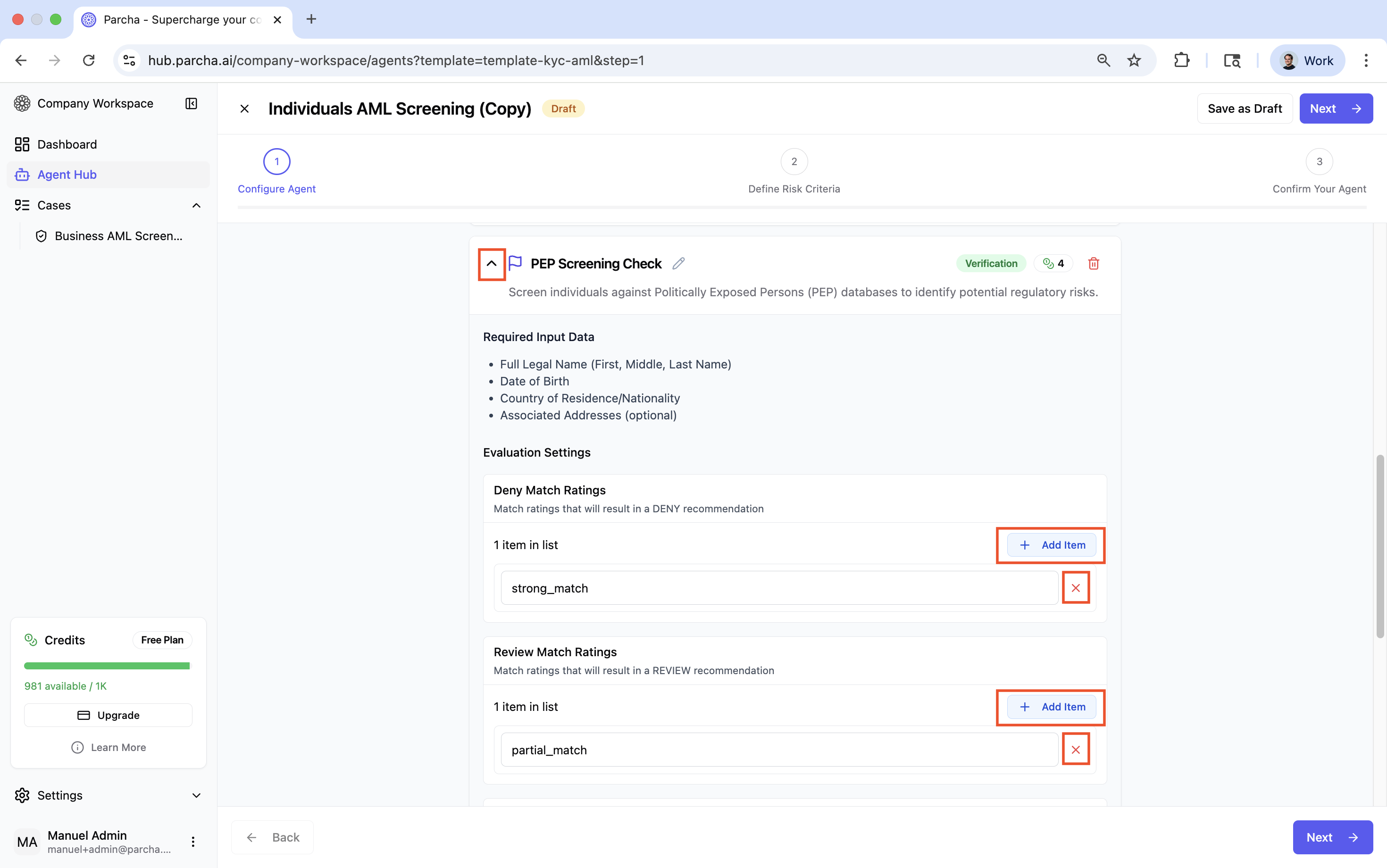
Politically Exposed Persons (PEP) Screening
Checks if the individual is a politically exposed person or related to one.
Configuration Options:
Match Ratings:
Configure which match strengths trigger "Deny" recommendations
Configure which trigger "Review" recommendations
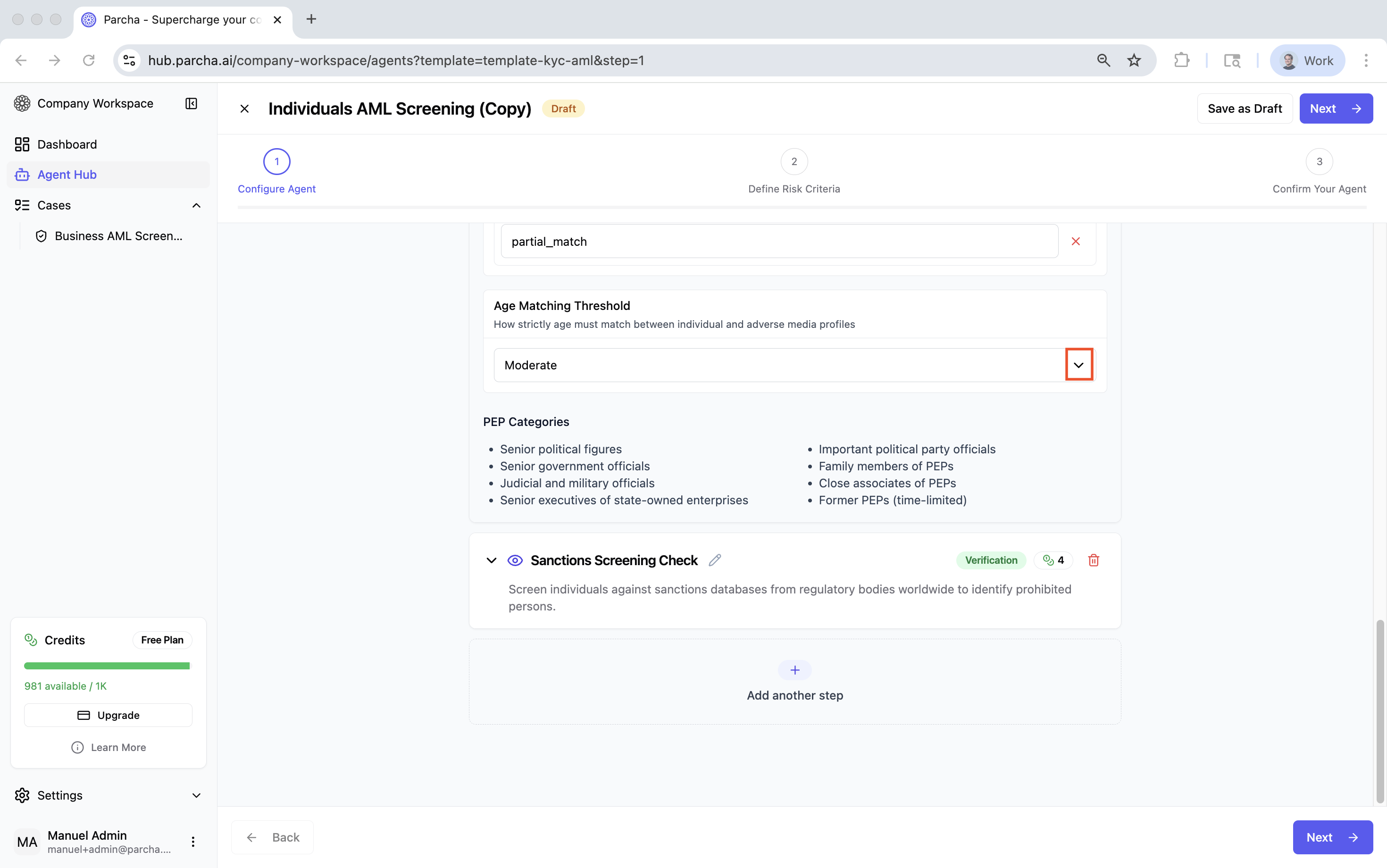
Age Matching Strictness:
Similar options to Adverse Media check
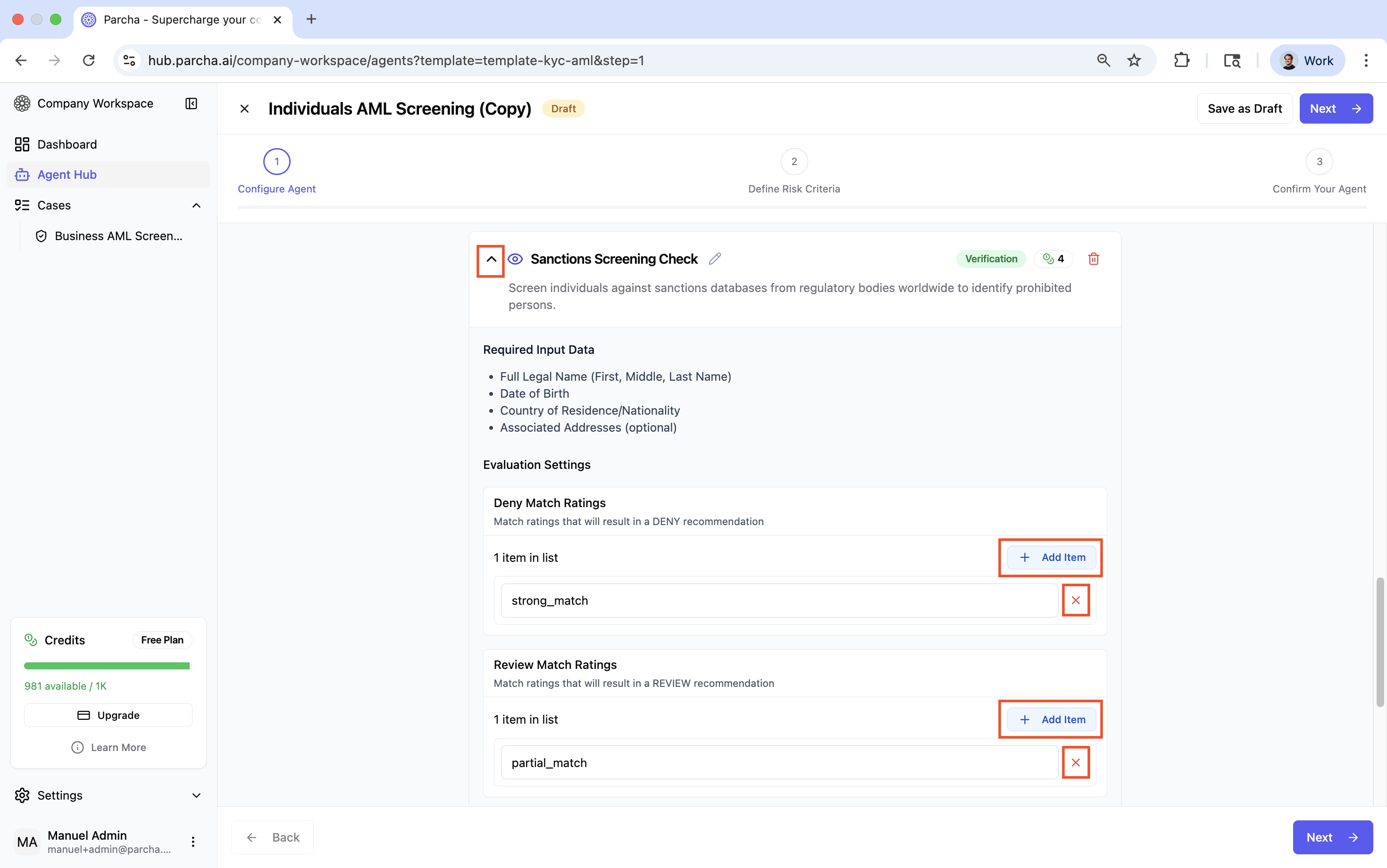
Sanctions Screening Check
Checks against global sanctions lists to ensure the individual isn't sanctioned.
Configuration Options:
Match Ratings: Configure denial and review thresholds
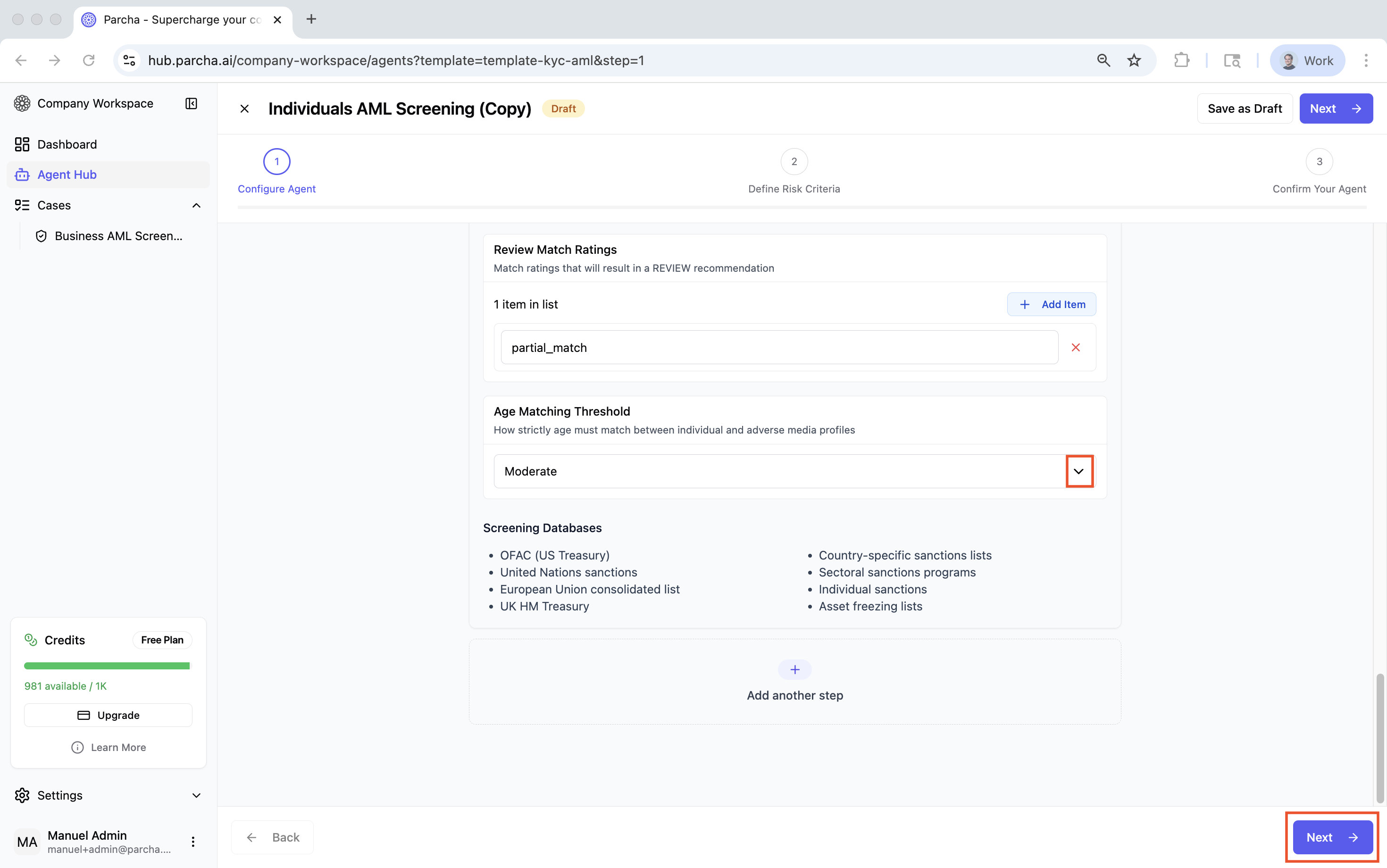
Age Matching: Set strictness level for age comparison
Step 3: Defining Risk Criteria
Understanding Risk Categories
The agent uses a three-tier risk system:
High Risk: Immediate concerns requiring senior review
Medium Risk: Potential concerns requiring additional verification
Low Risk: No significant concerns found
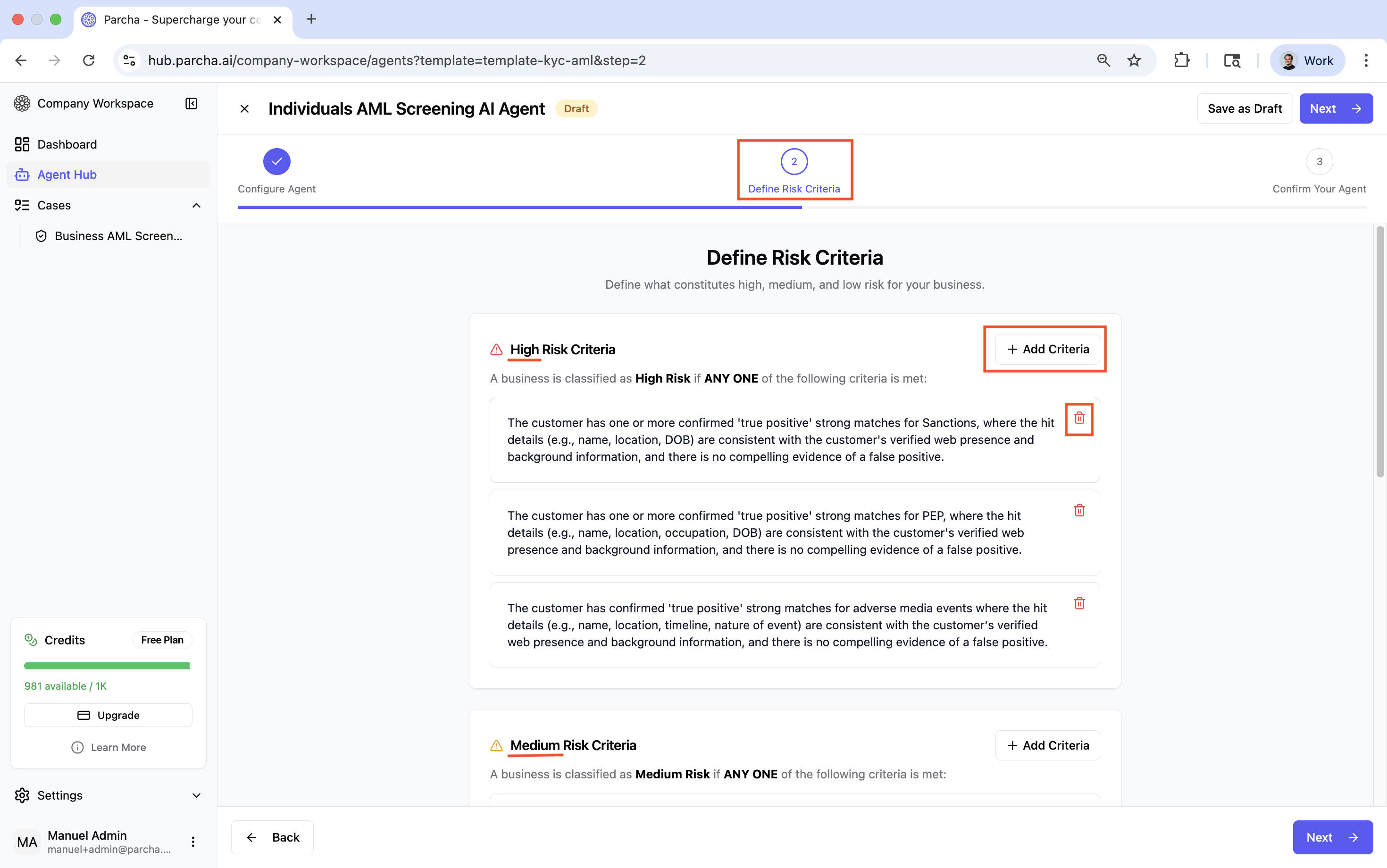
3.1 - Add or delete criteria for High, Medium, and Low risk categories.
Default Risk Criteria
Each risk level comes with pre-configured criteria:
High Risk Criteria:
Confirmed strong matches on sanctions lists
Confirmed PEP with high-risk jurisdiction connections
Multiple credible adverse media reports
Medium Risk Criteria:
Partial matches requiring manual verification
PEP family members or close associates
Single or unverified adverse media mentions
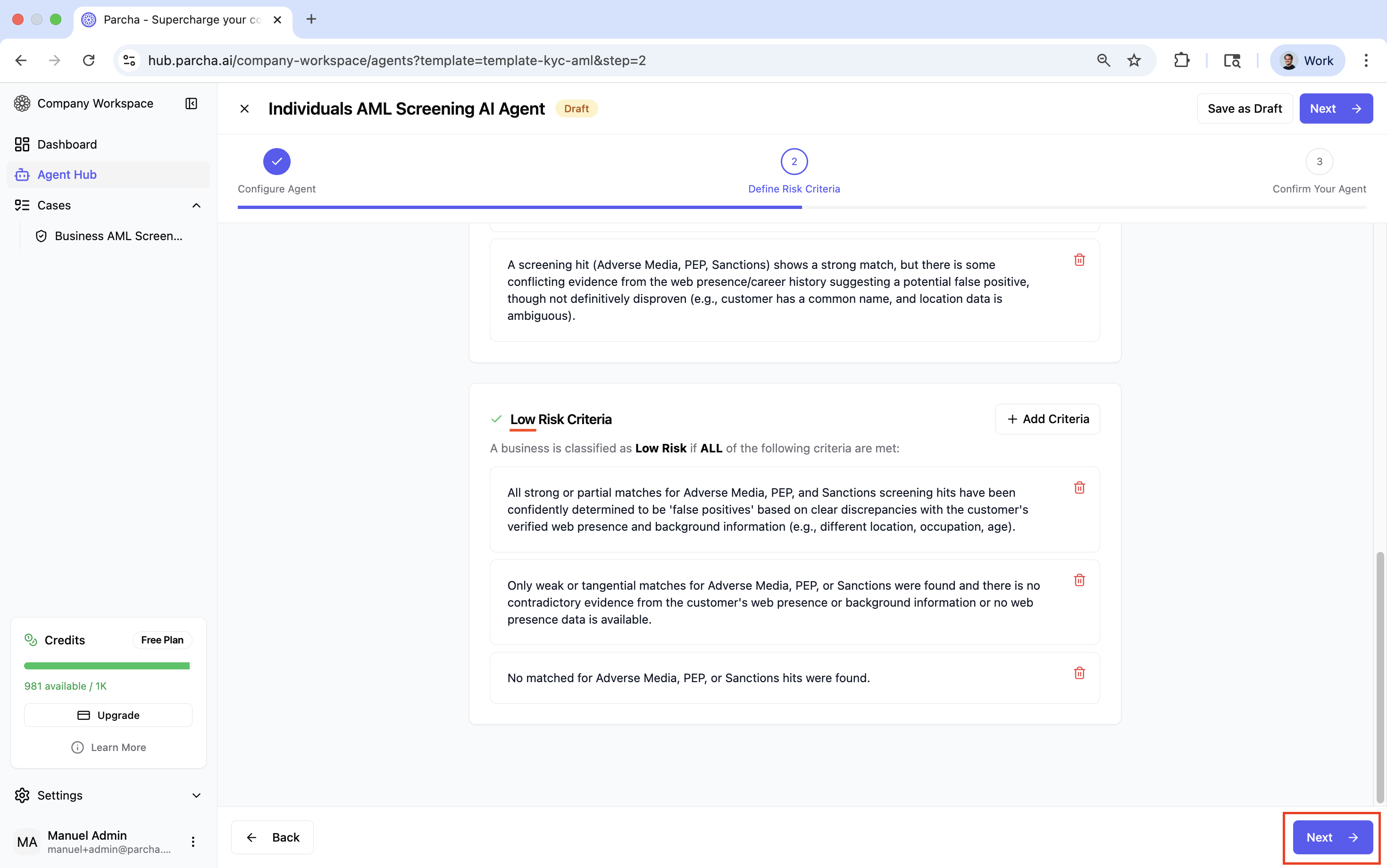
Low Risk Criteria:
All matches determined to be false positives
No adverse findings across all checks
Clear web presence with no concerns
3.3 Customizing Risk Criteria
To add custom criteria:
Click "Add Criteria" under the relevant risk level
Enter your specific criterion (e.g., "Individual from high-risk jurisdiction with limited web presence")
Click "Save" to add it to the list
To modify existing criteria:
Click the edit icon next to any criterion
Modify the text as needed
Save your changes
To remove criteria:
Click the delete icon next to unwanted criteria
Confirm the deletion
Step 4: Confirming Your Agent
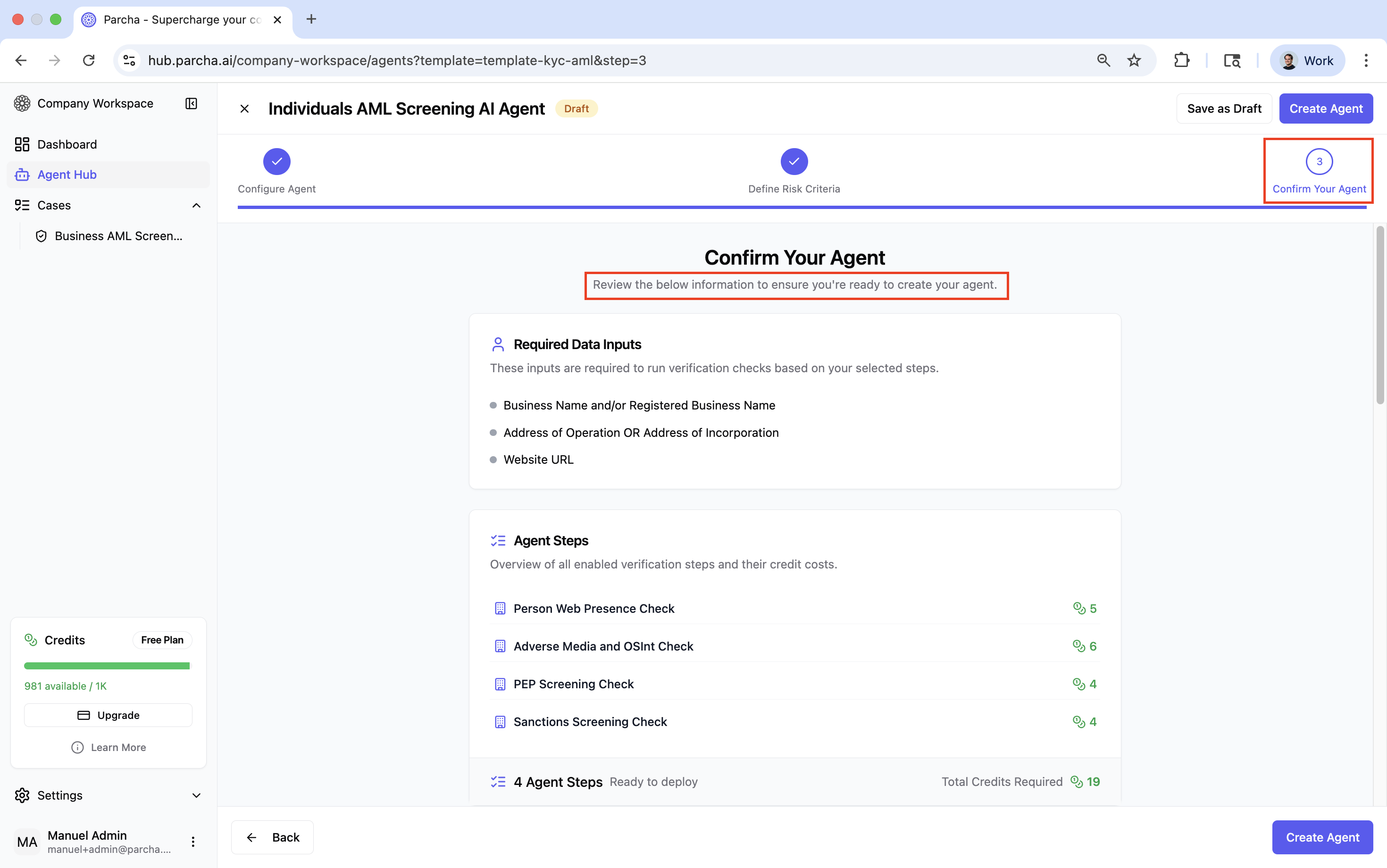
Review Configuration
Before finalizing, review all settings:
Agent name and description are clear
All necessary verification steps are included
Thresholds are appropriately configured
Risk criteria align with your compliance policies
Saving Your Agent
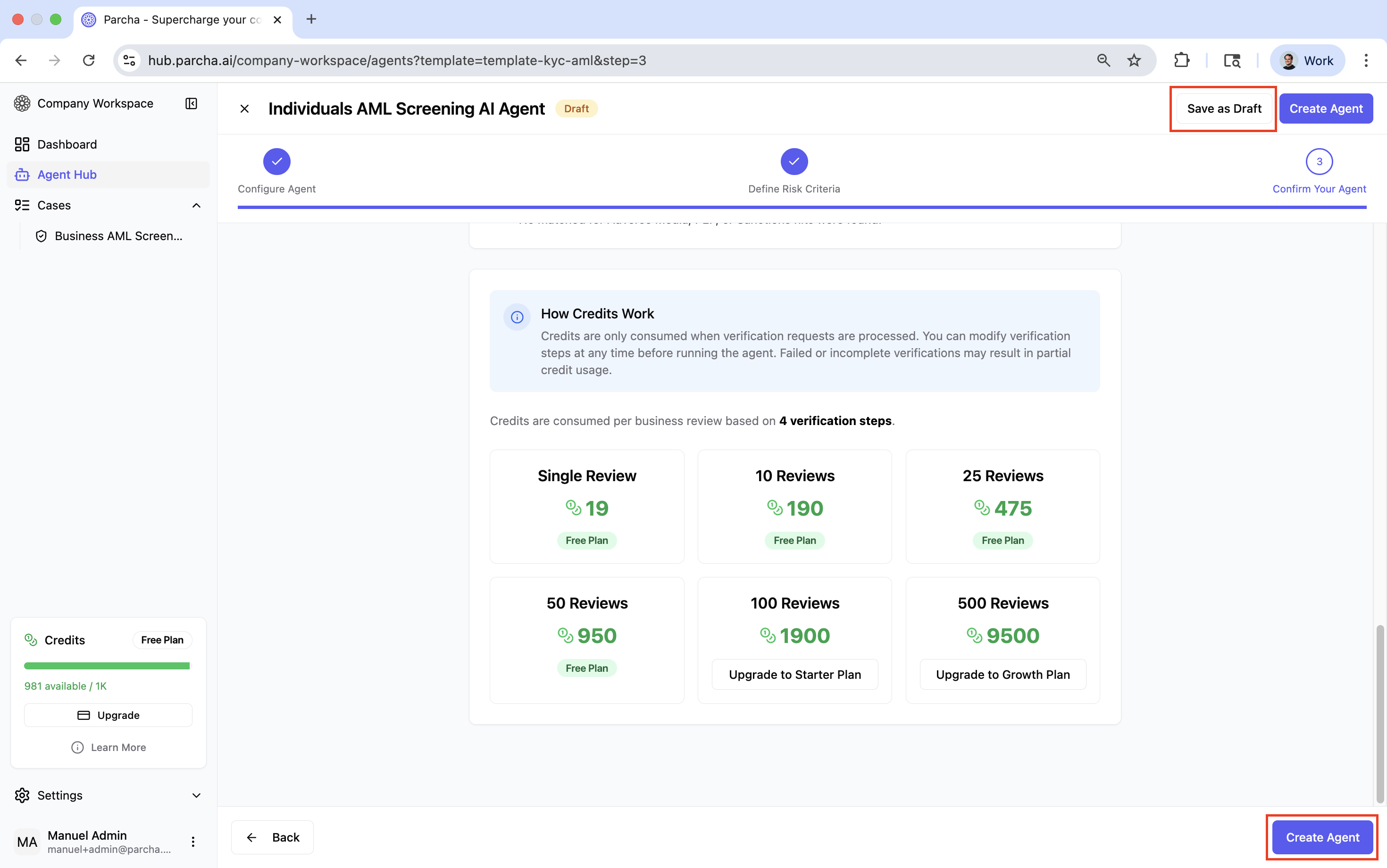
You have two options:
Create Agent:
Finalizes the configuration
Makes the agent immediately available for use
Cannot be edited after creation (must create new version)
Save as Draft:
Saves your configuration progress
Allows you to return and continue editing later
Agent won't be available for screening until finalized
Post-Creation
Once created:
The agent appears in your agents list
You can immediately begin running cases
The configuration is locked to ensure consistency
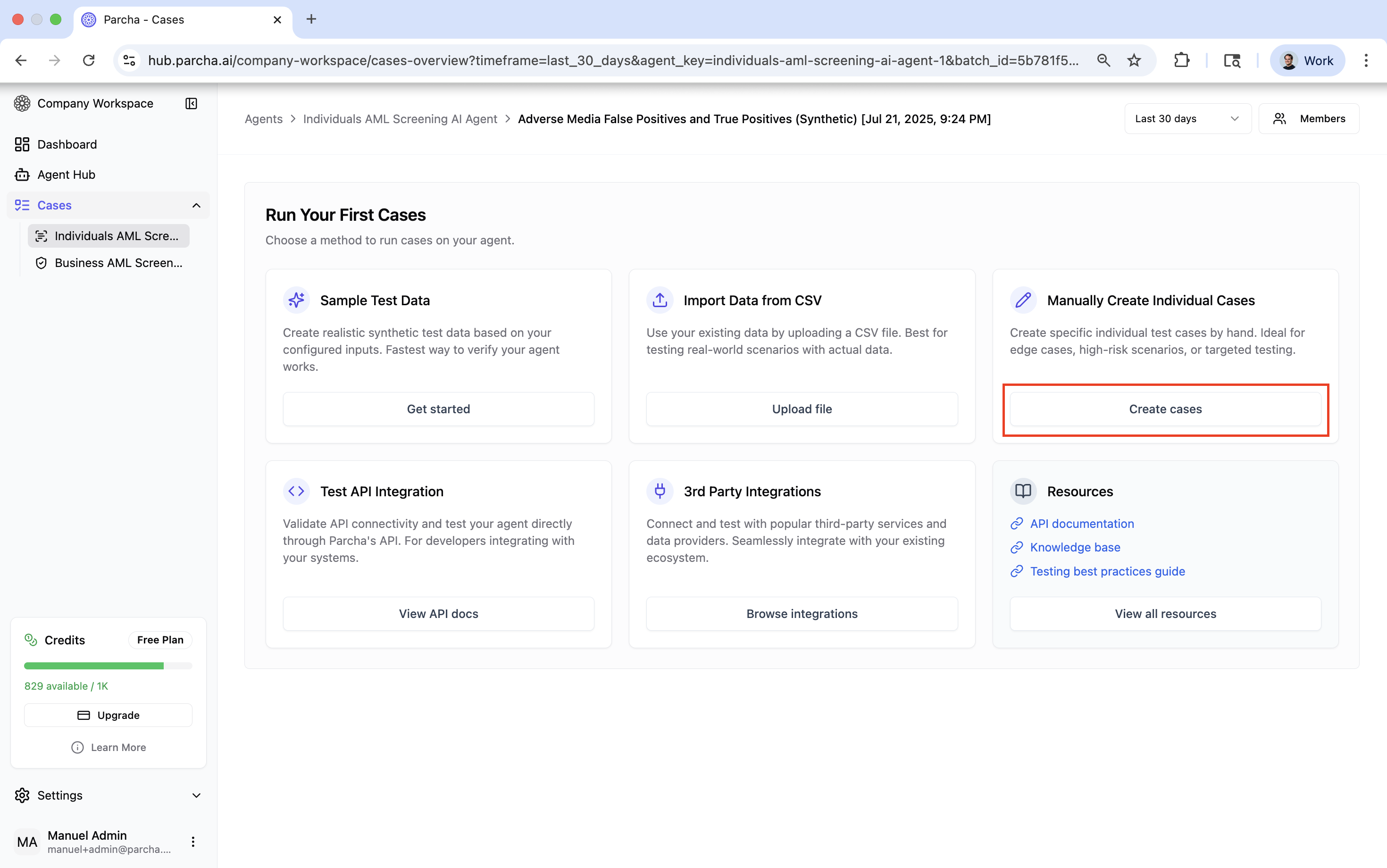
5.1 Starting a New Case
From the Cases view, click "Add New Cases" and select "Manually Create Individual Cases"
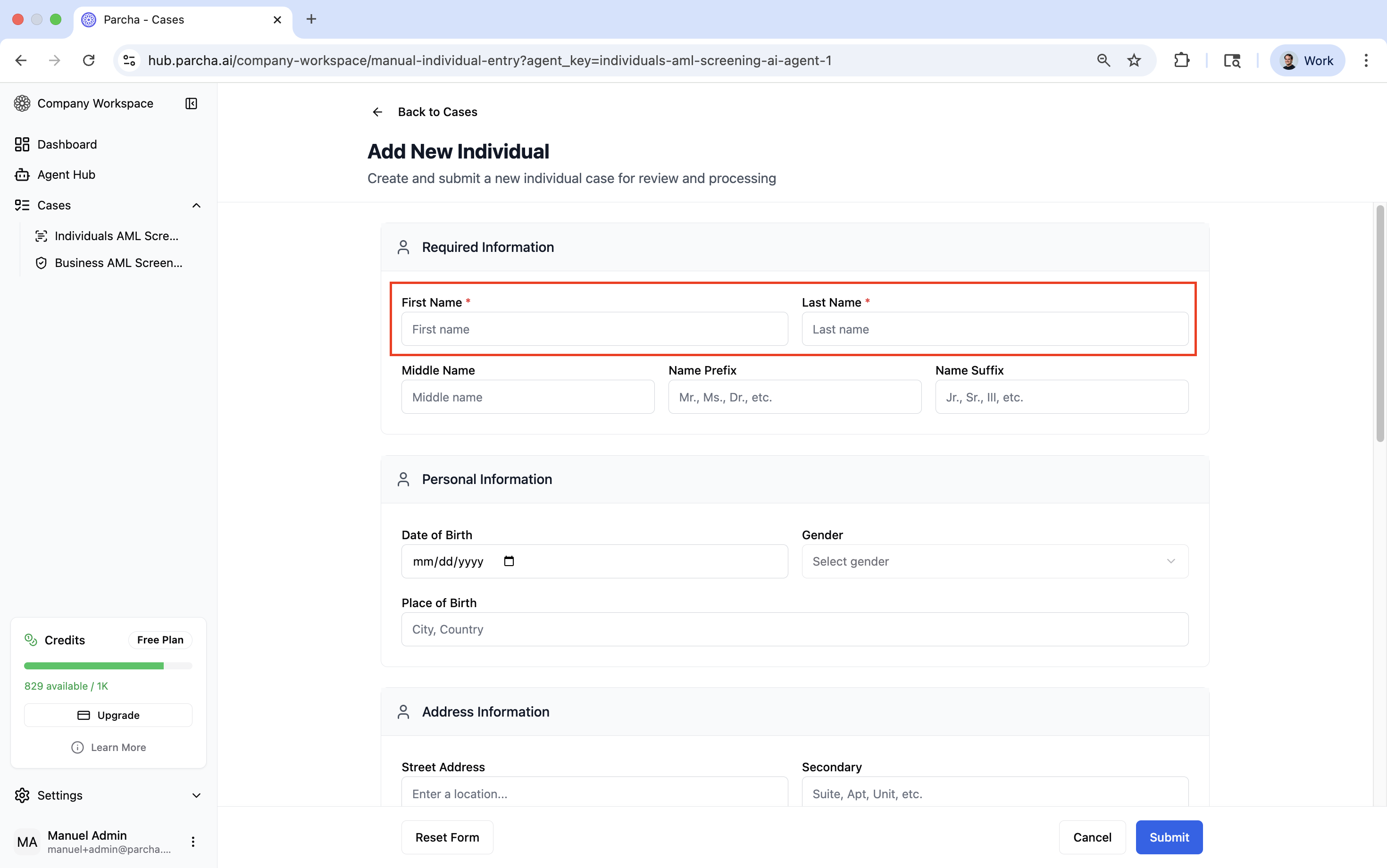
5.2 Entering Individual Information
Required Fields:
First Name
Last Name
Recommended Fields:
Date of Birth (improves matching accuracy)
Country of Residence
City/State
Nationality
Optional Fields:
Middle Name
Address
Phone Number
Email Address
Additional Identifiers
5.3 Alternative Input Methods
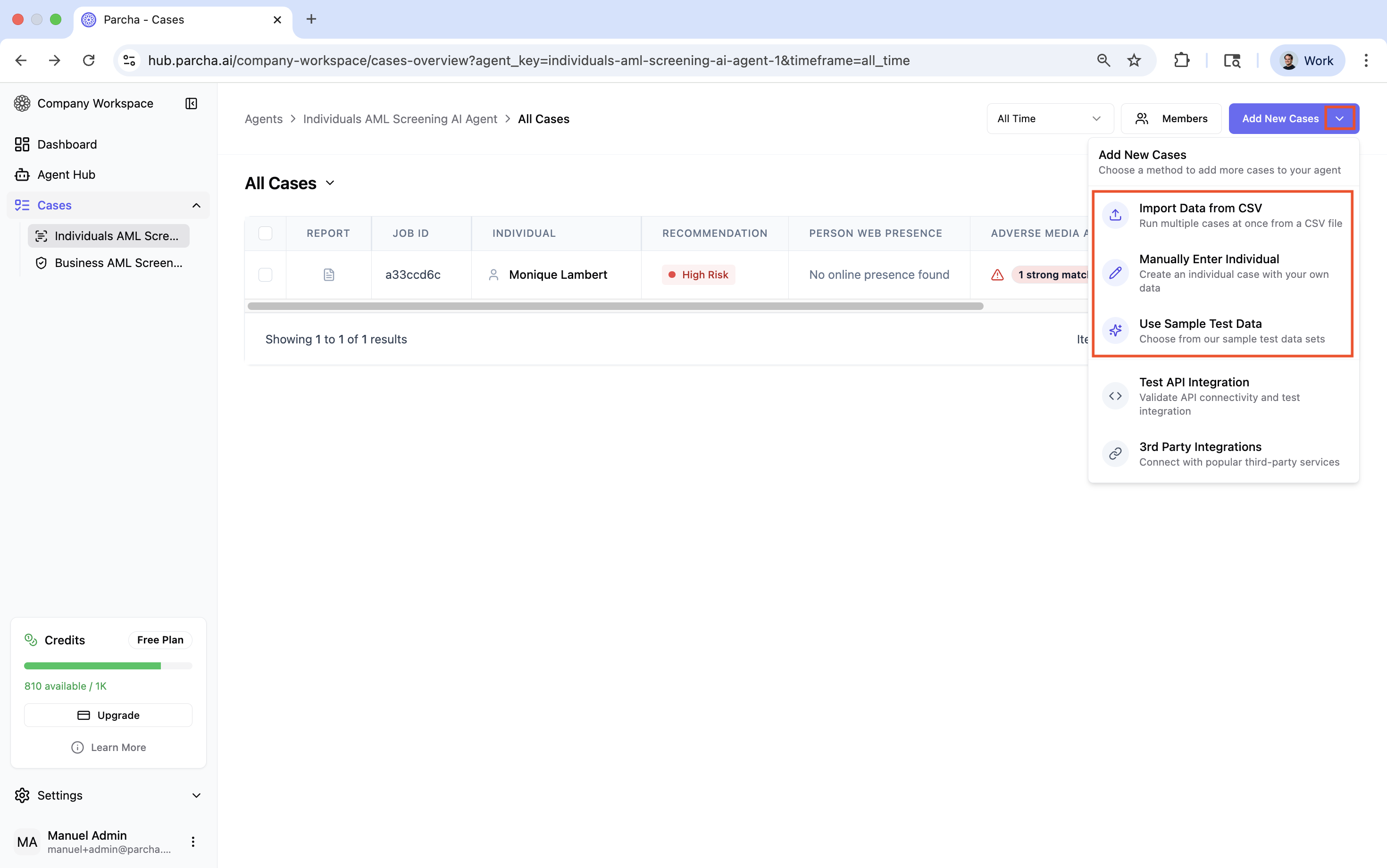
Import from CSV:
Bulk upload multiple individuals
Download template for correct formatting
Map columns to required fields
Sample Test Data:
Use pre-populated test cases
Helpful for training and demonstrations
Includes various risk scenarios
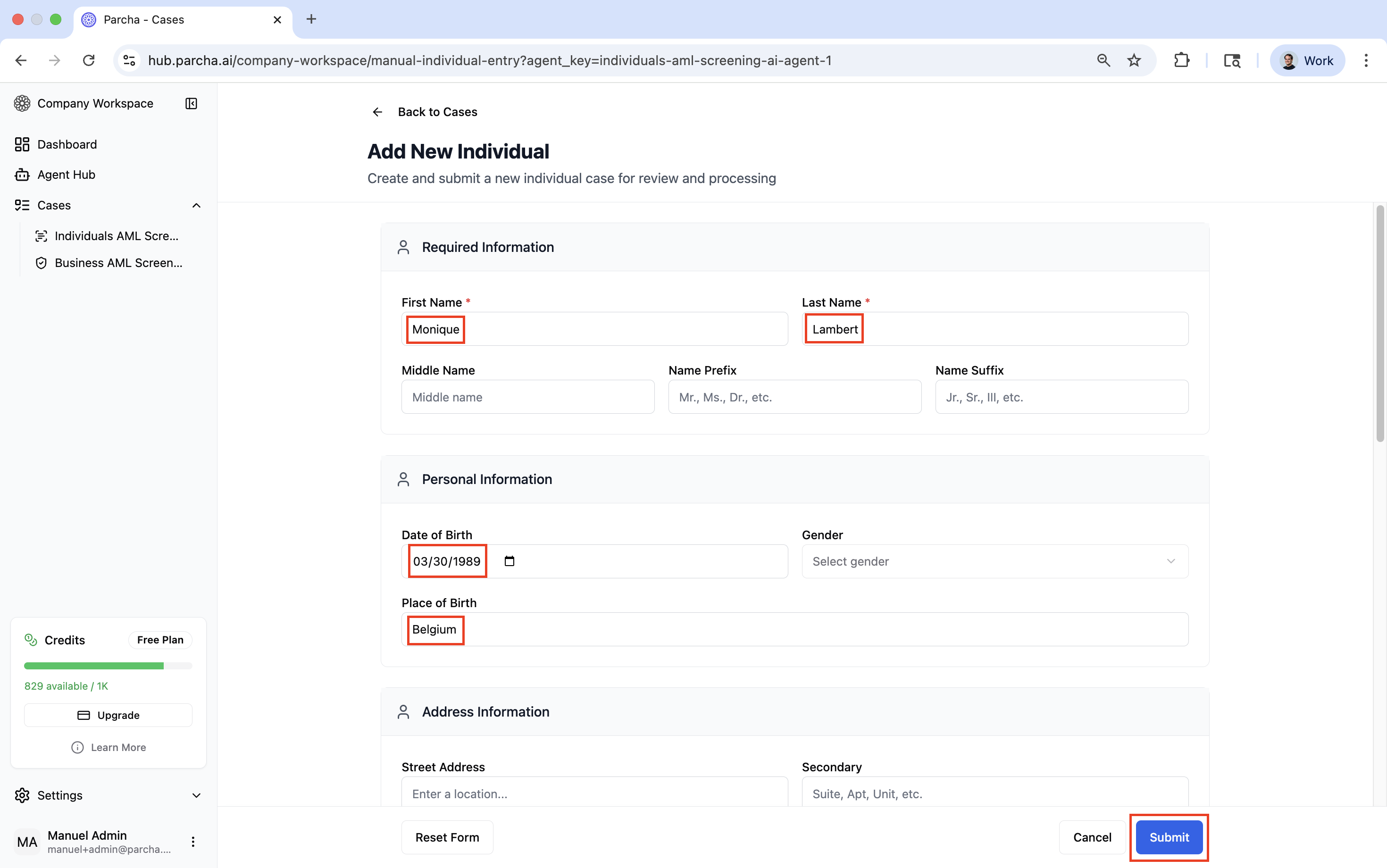
5.3 - Access finished and in-progress cases from the Cases view
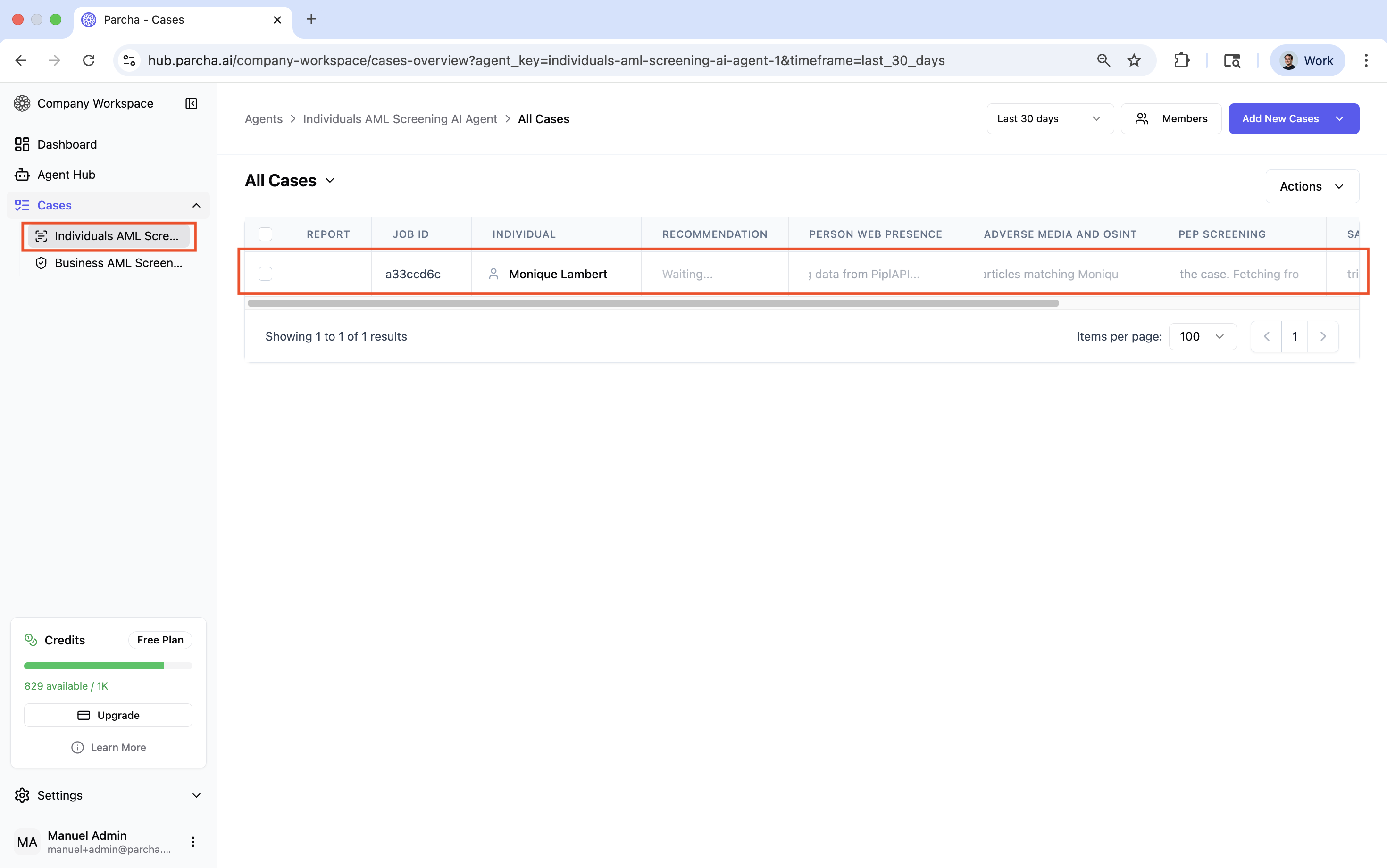
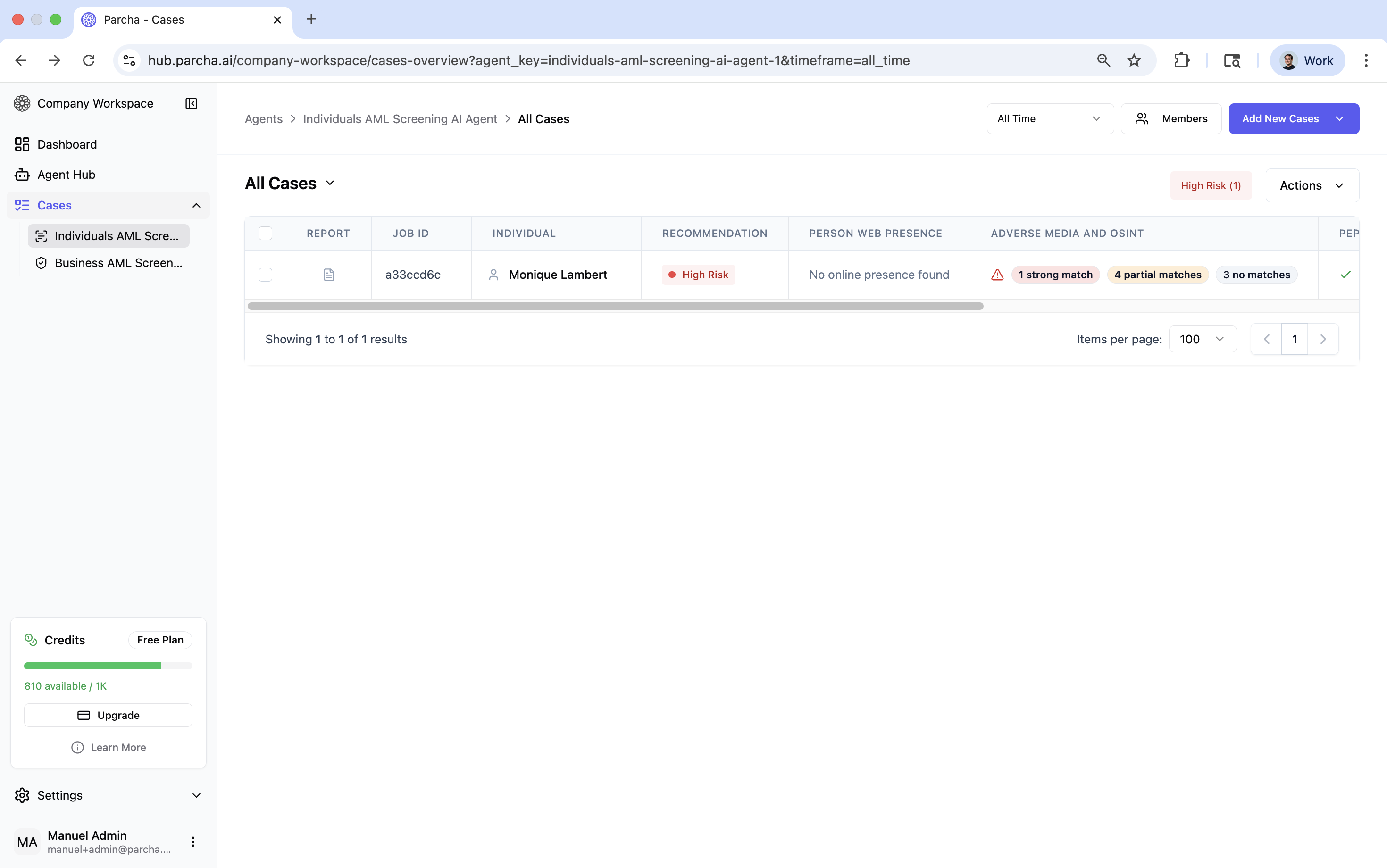
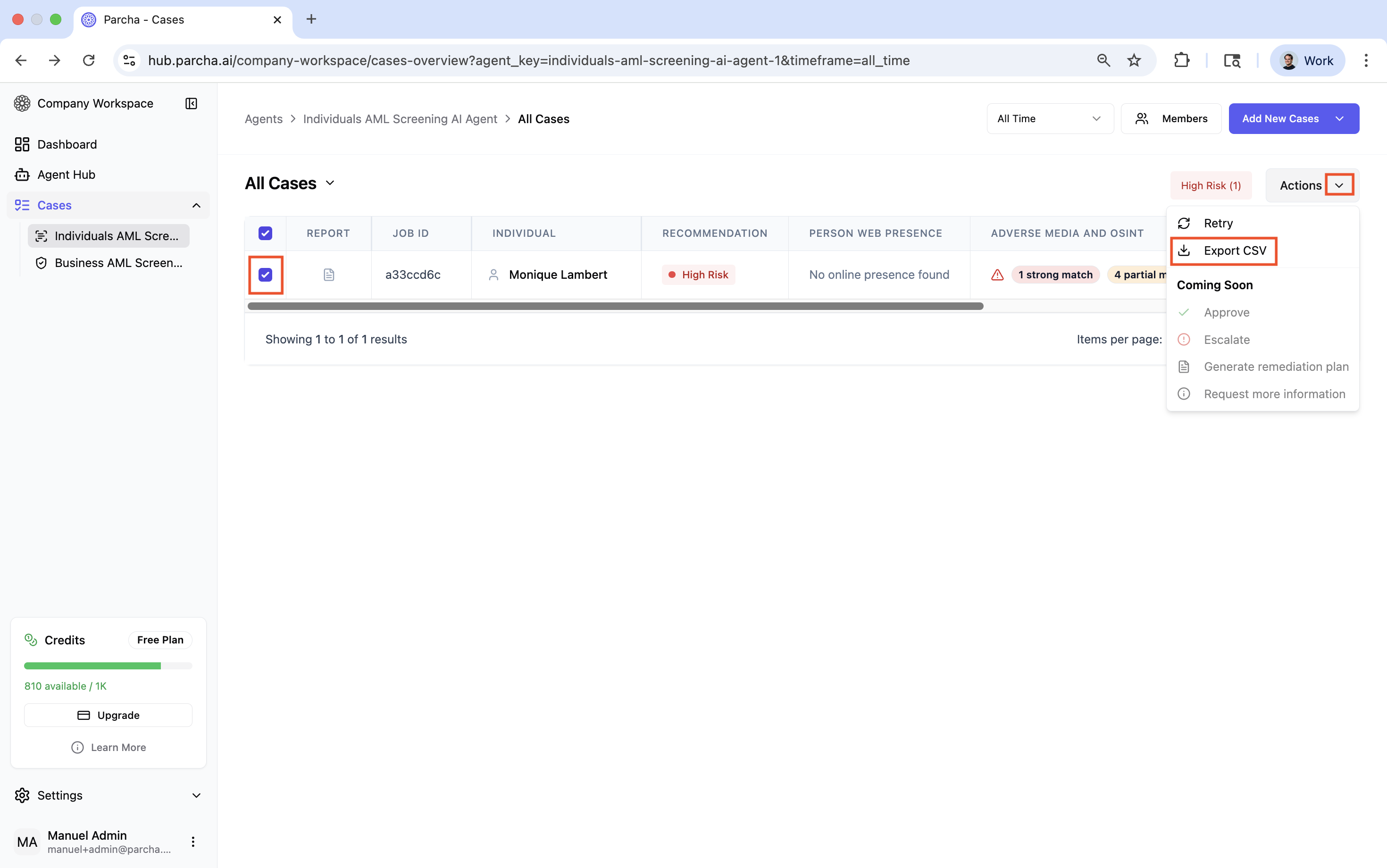
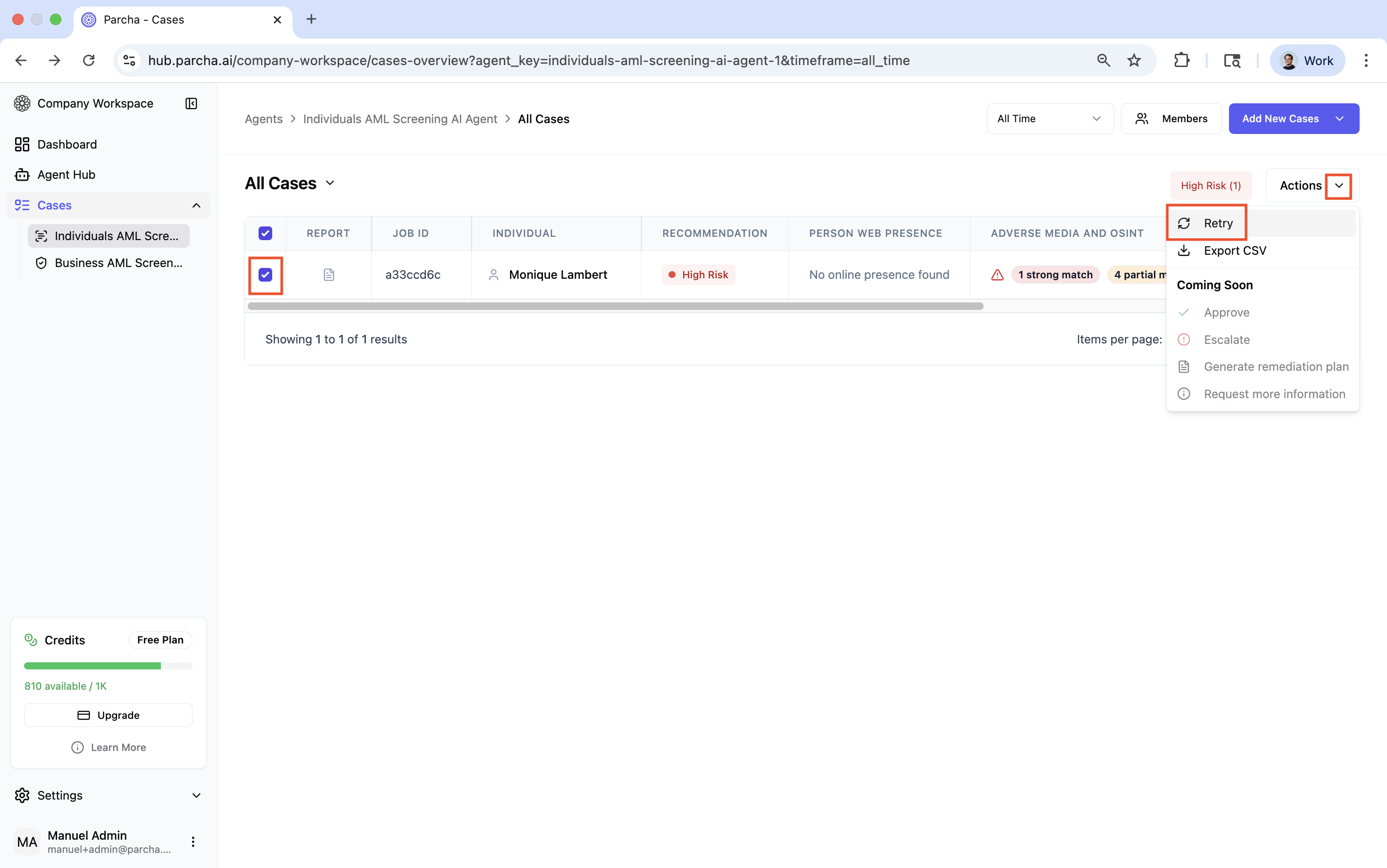
5.4 - Retry cases from the Actions dropdown if needed.
6 - Run additional cases by selecting the method from the 'Add New Cases' dropdown.
7 - Navigate Results of Finished Cases
7.1 - Click the report icon to open the report.
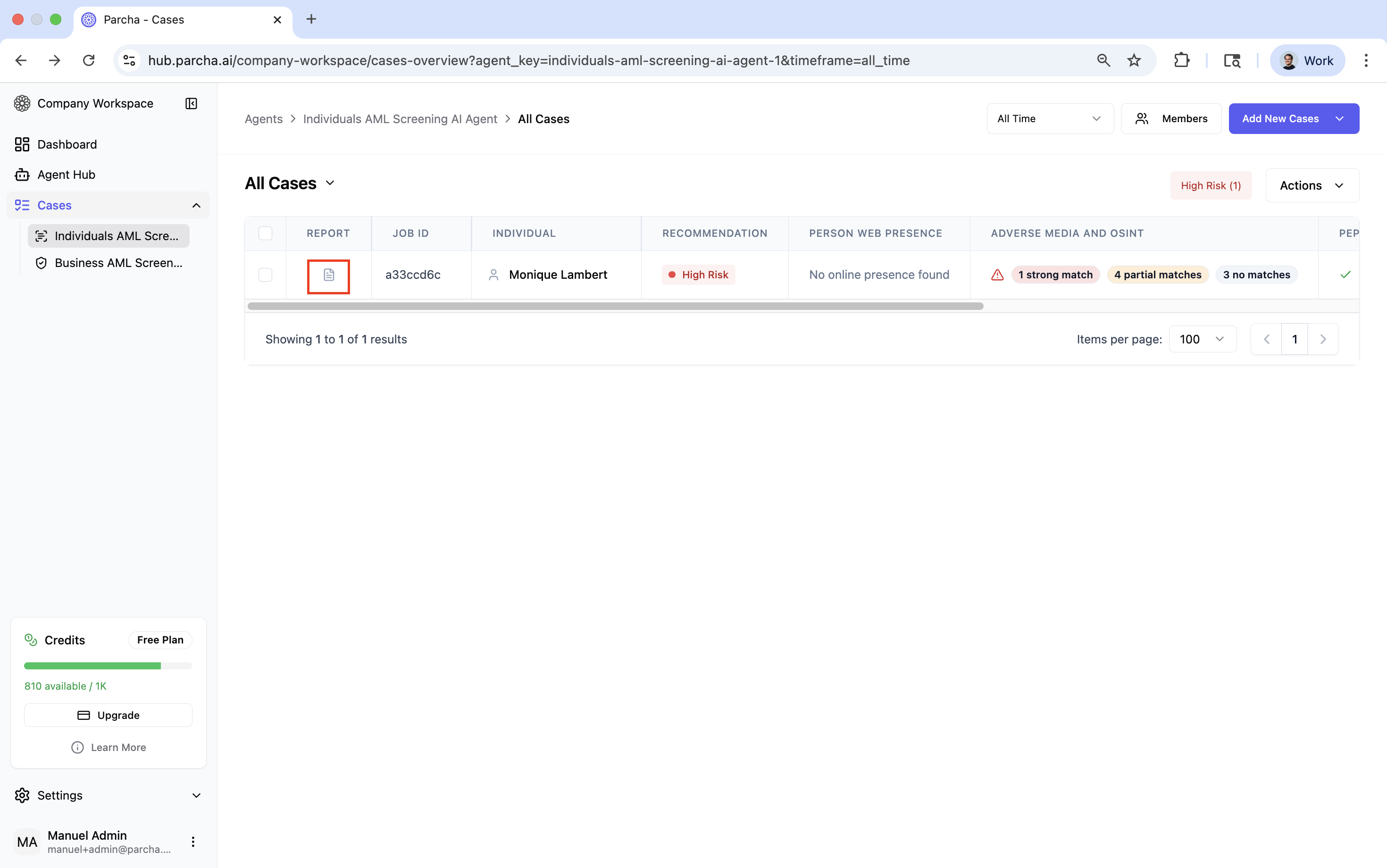
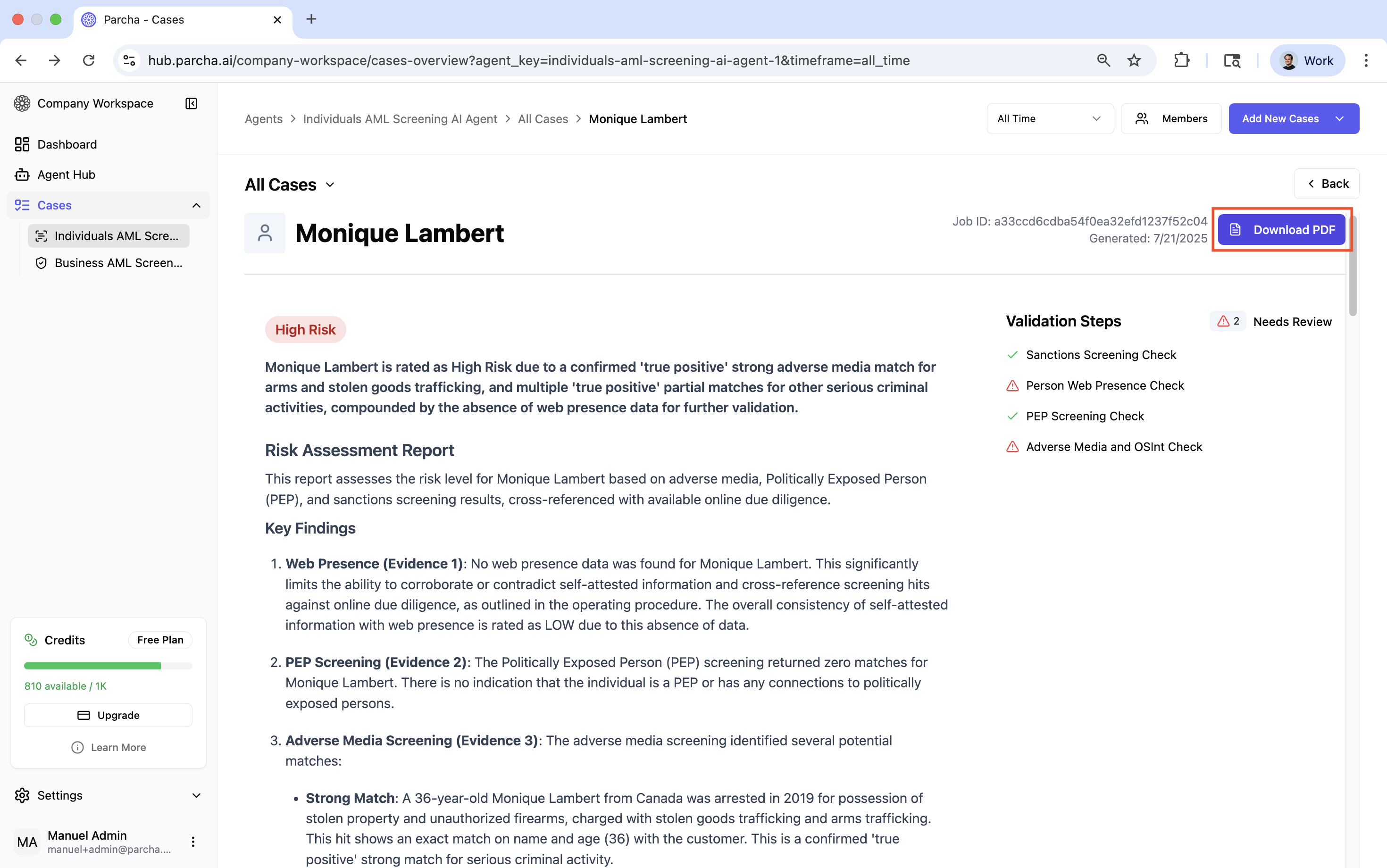
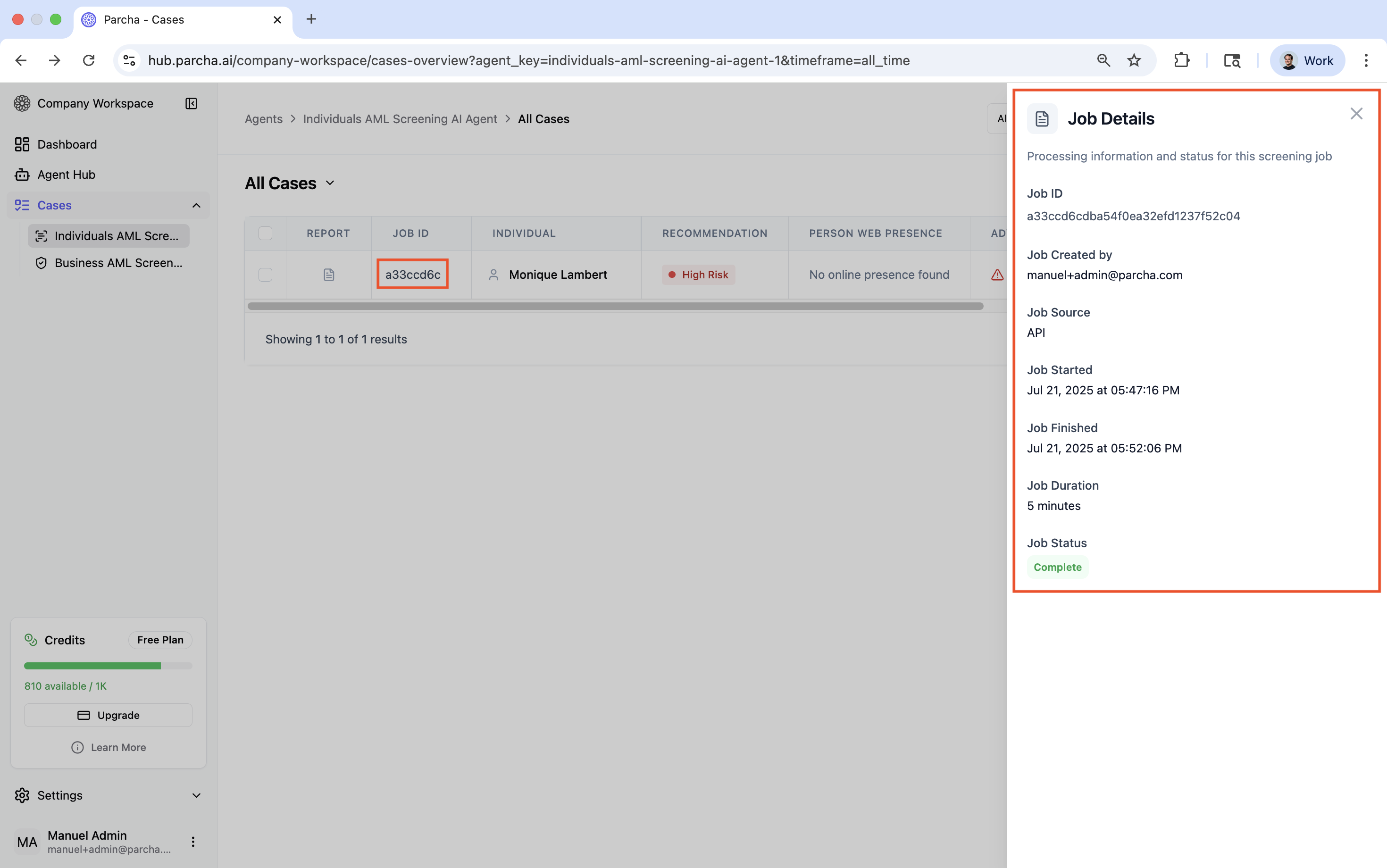
7.2 - Click the Job ID number to view job details
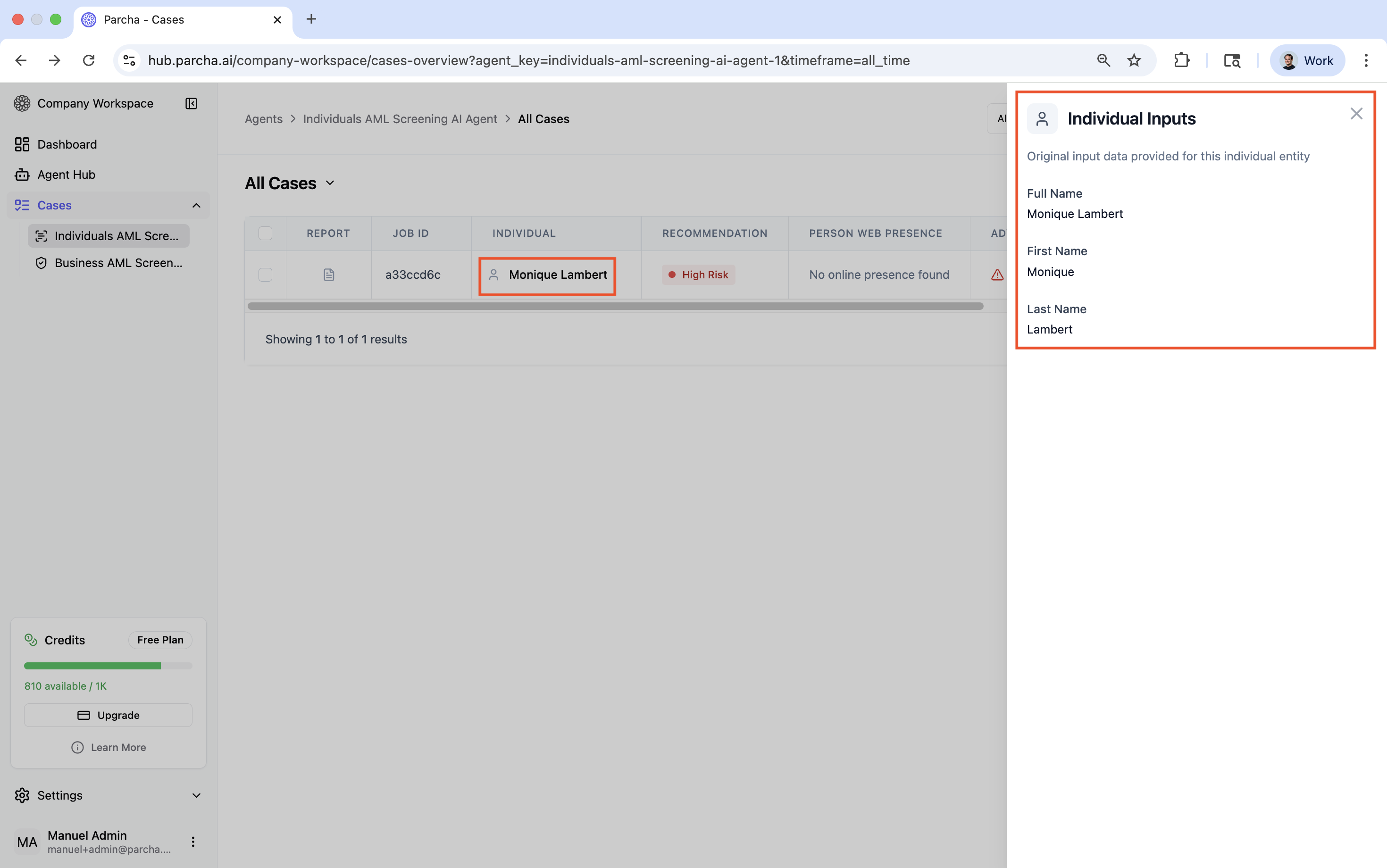
7.3 - Click on individual's name to view the Individual Inputs
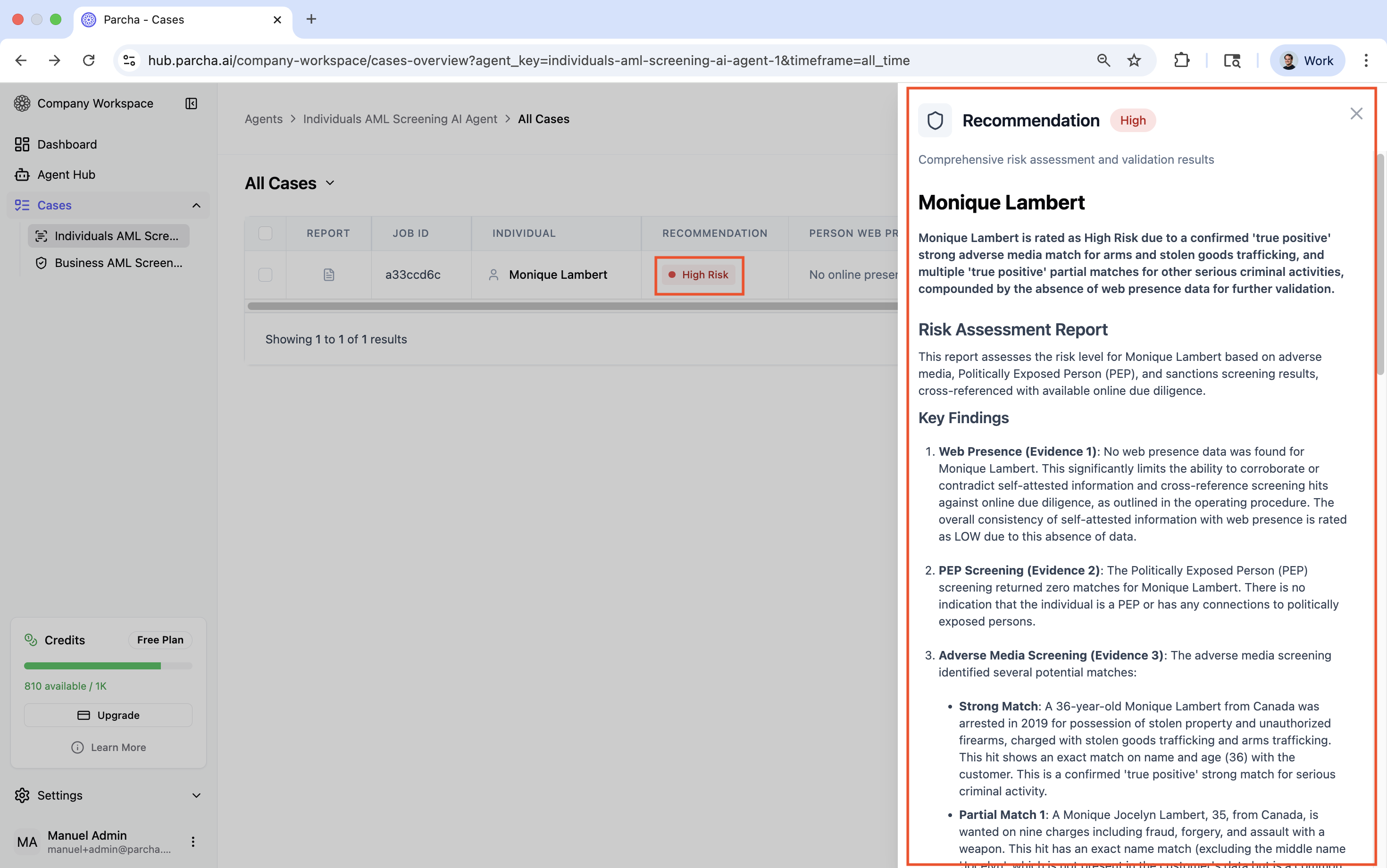
7.4 - Click on the recommendation to view the risk assessment and validation results
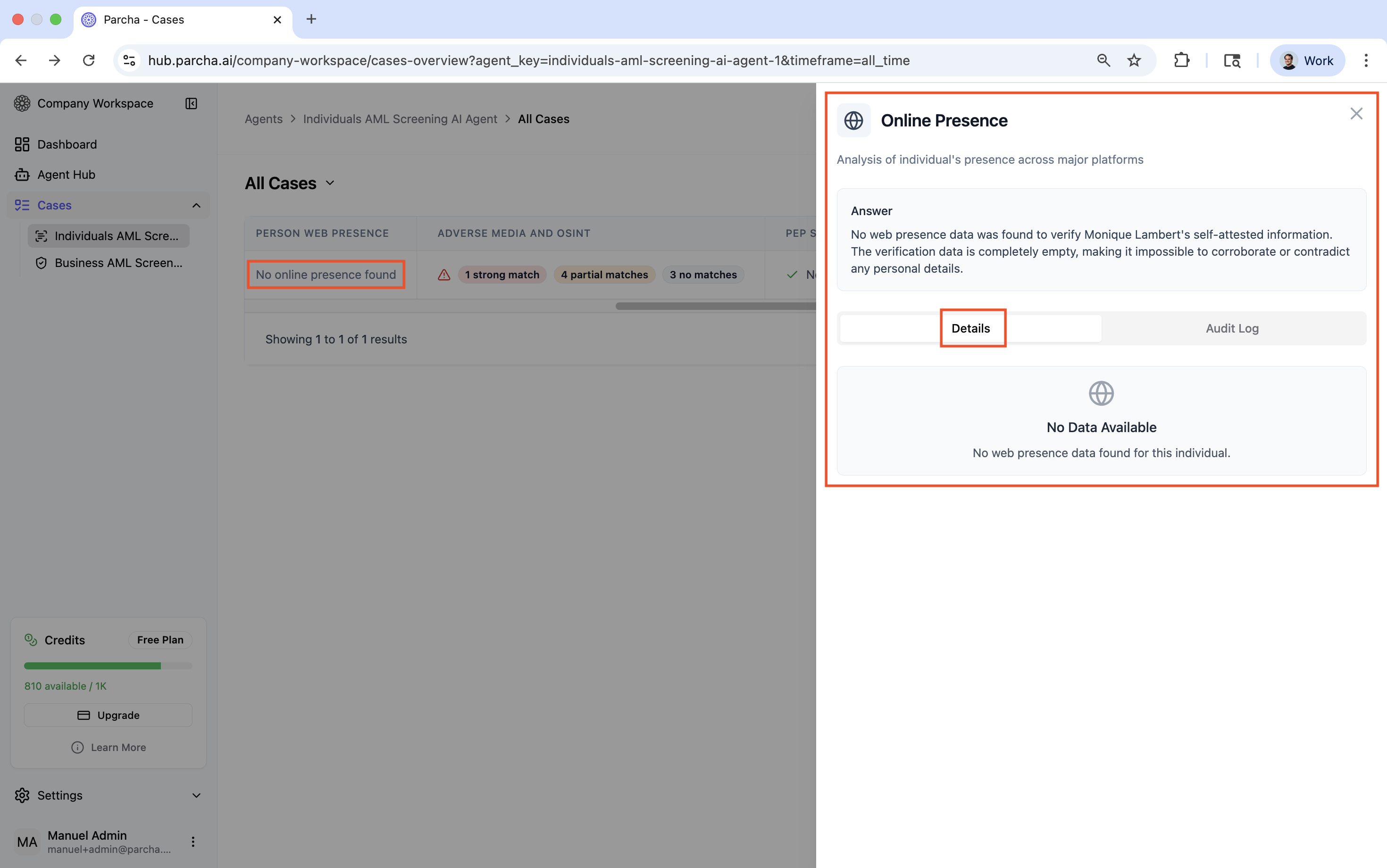
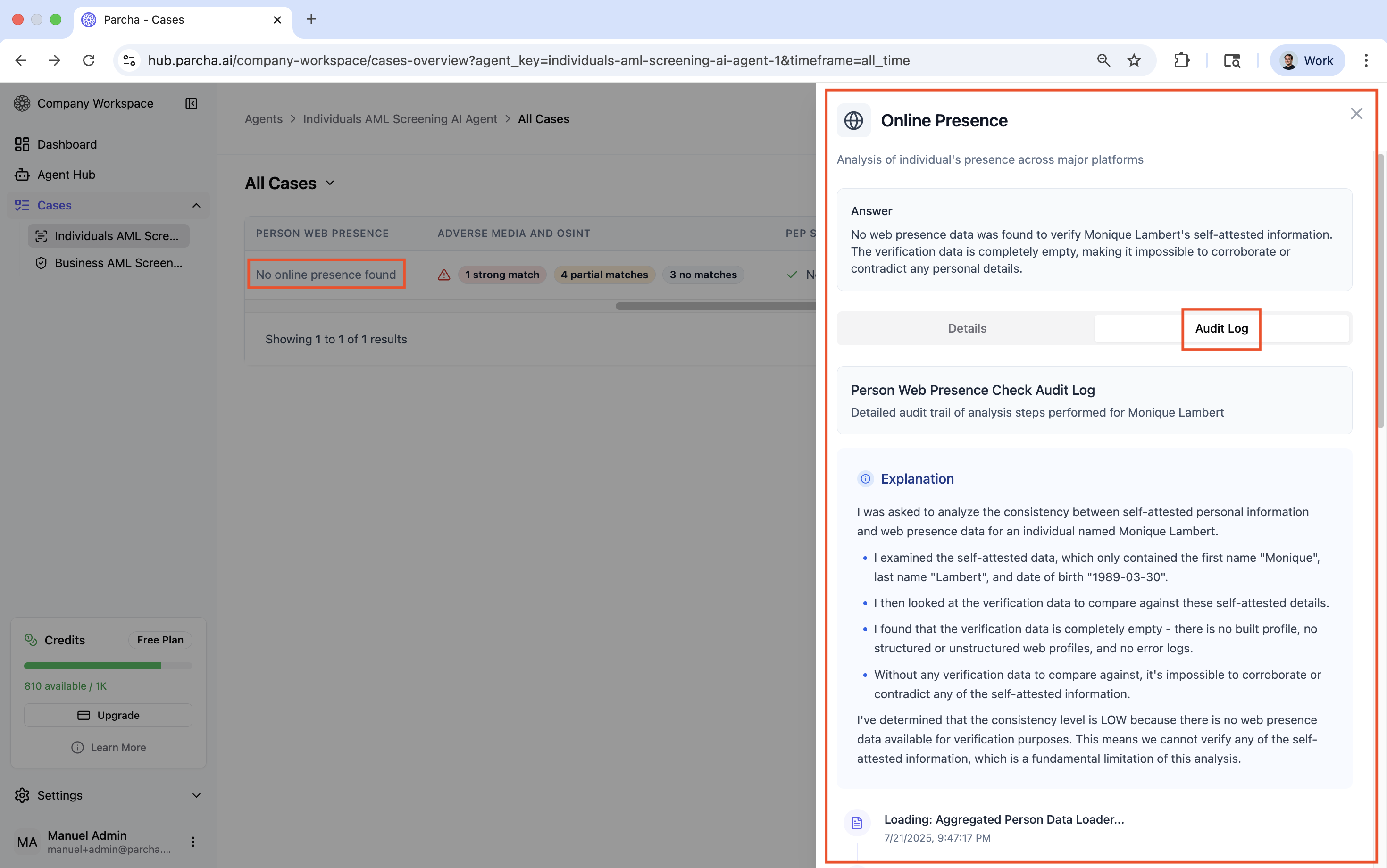
7.5 Click on the Person Web Presence to view Online Presence results
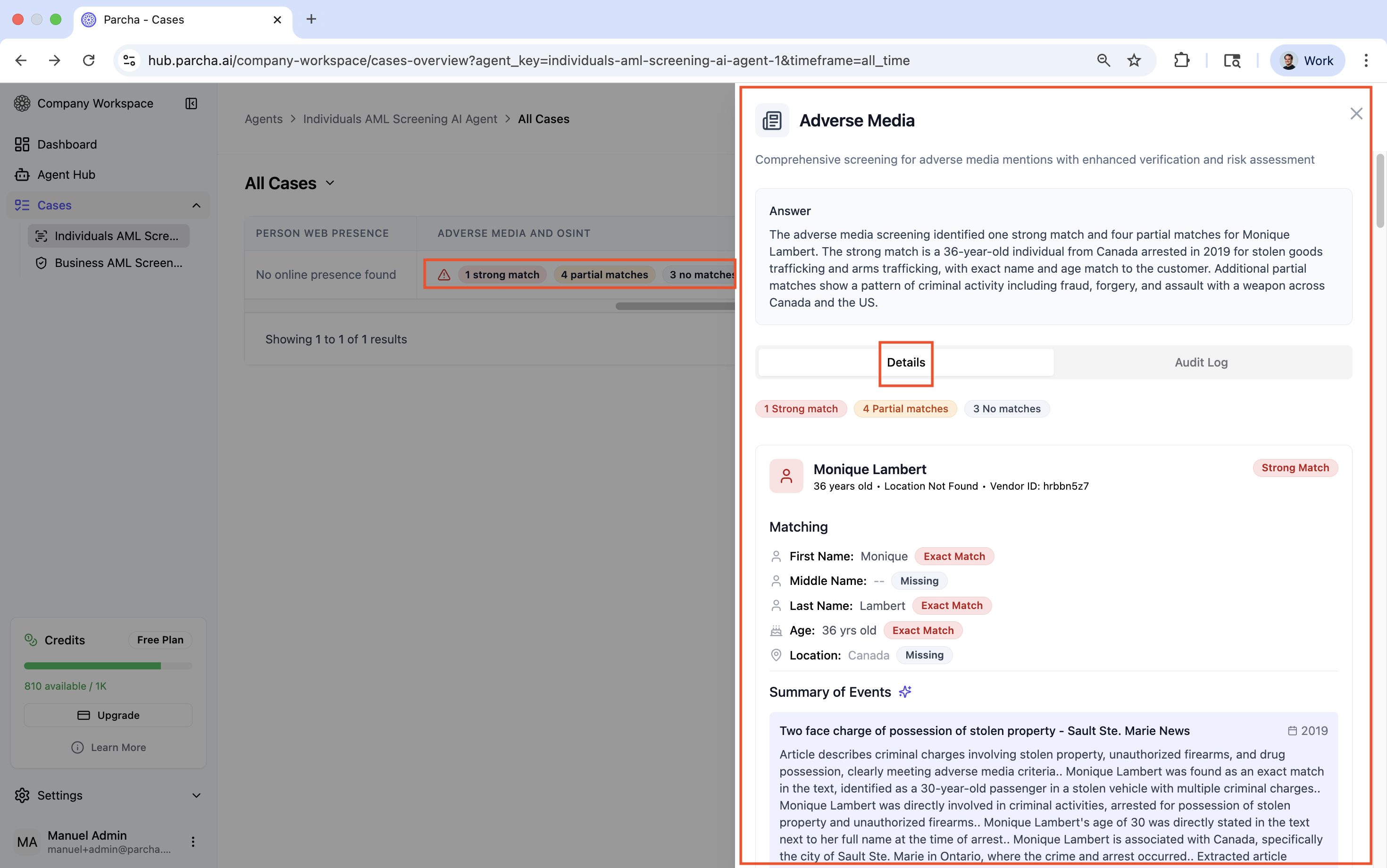
7.6 - Click on Adverse Media and OSINT to view screening for adverse media results
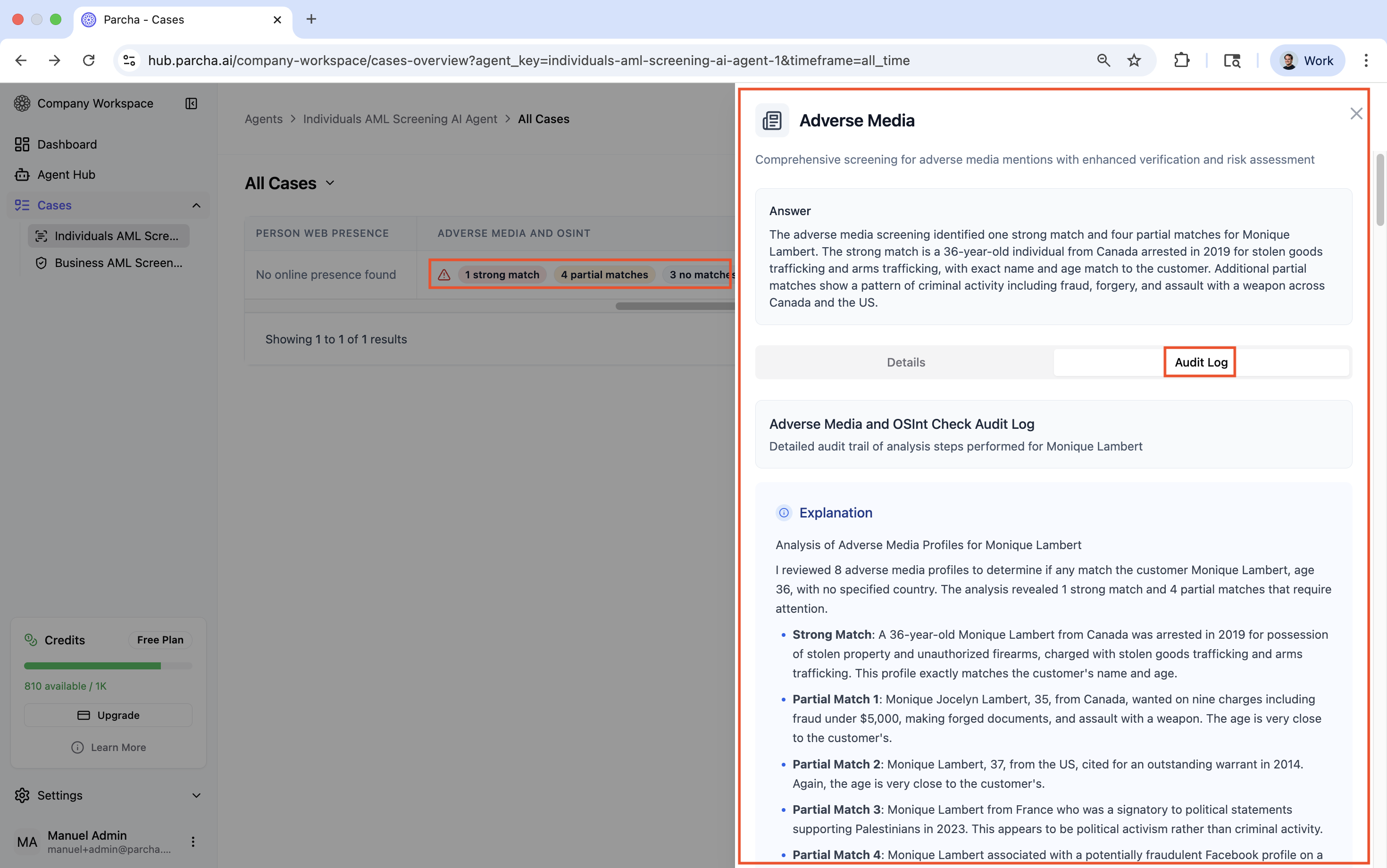
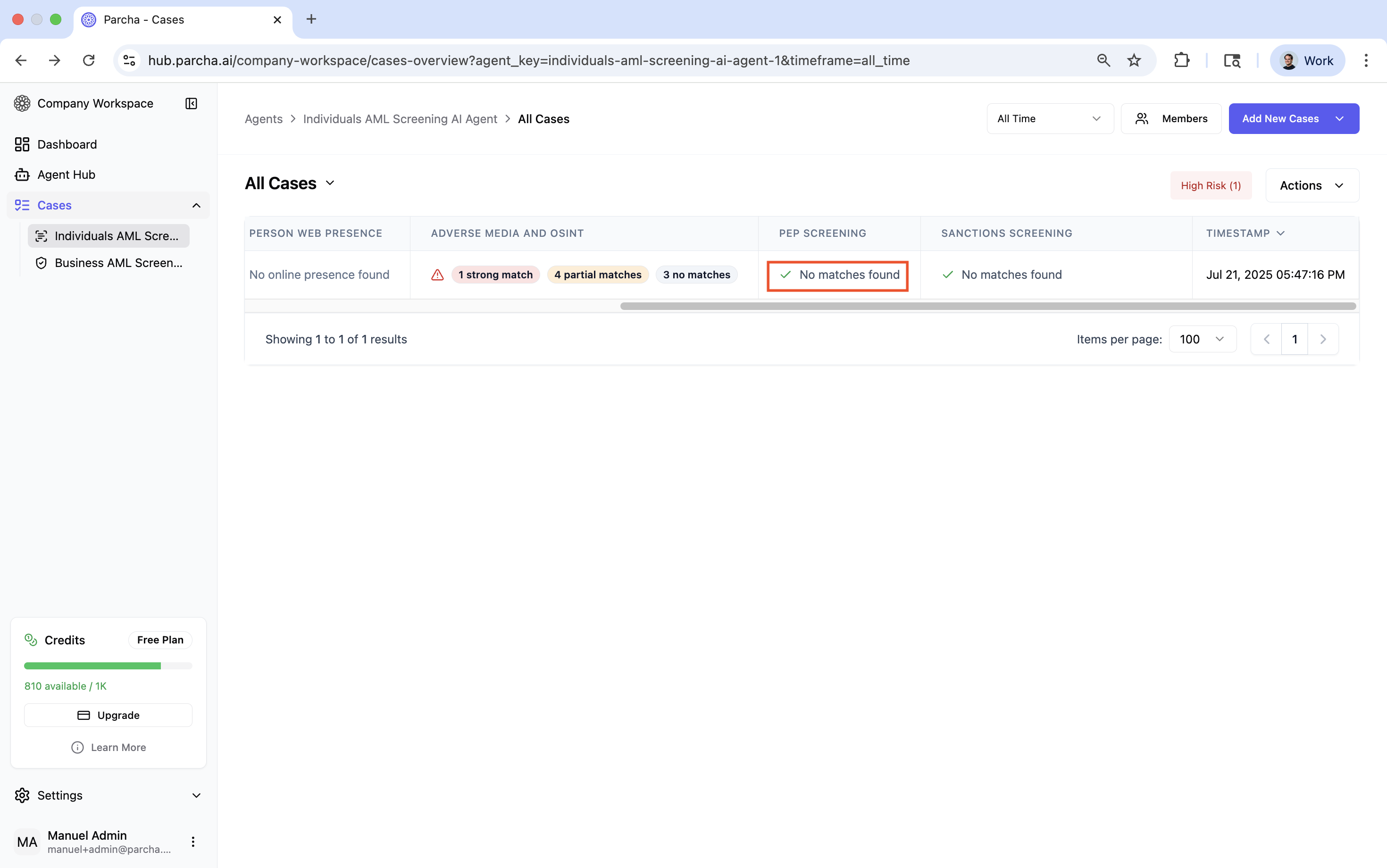
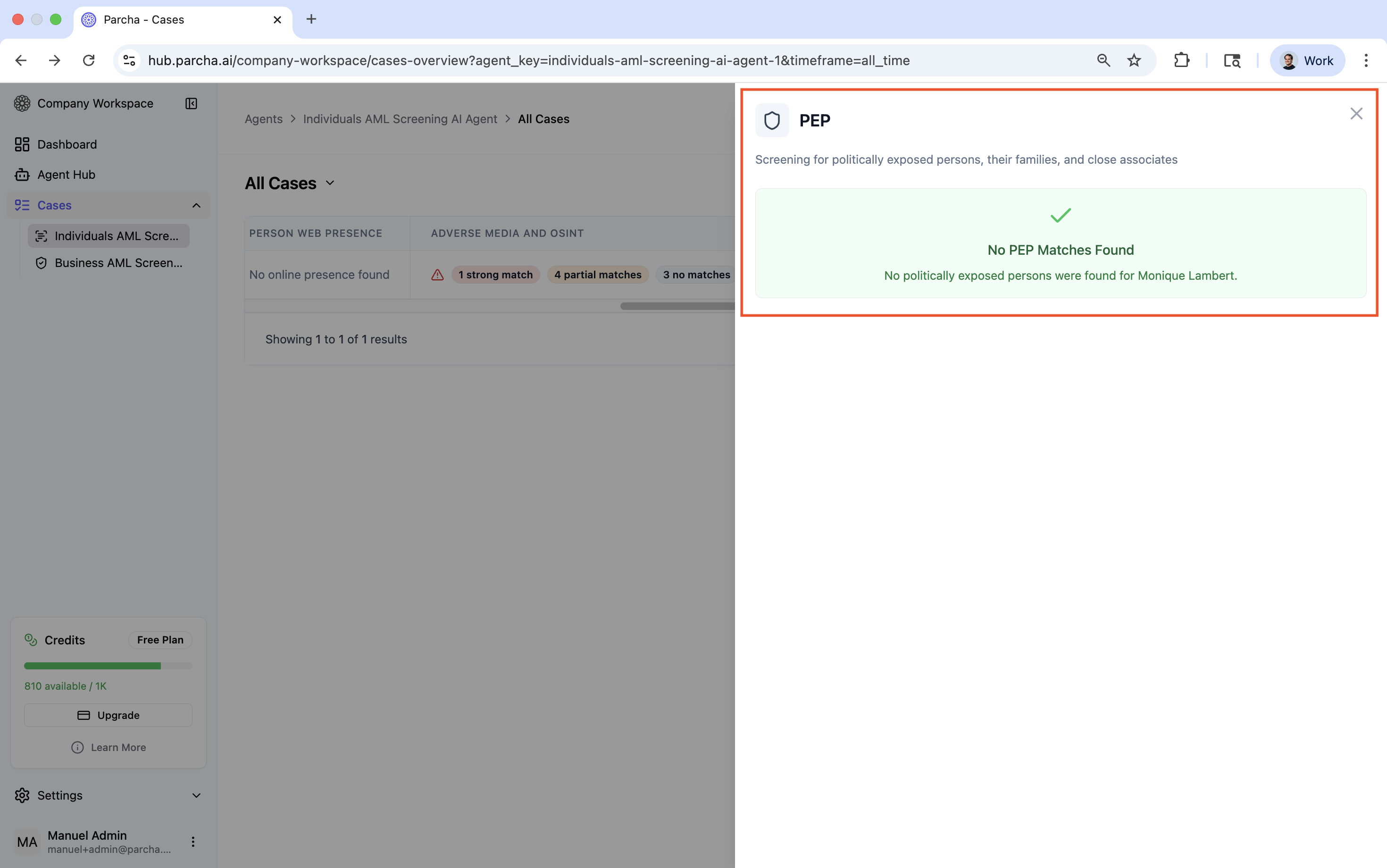
7.7 Click on PEP Screening to view politically exposed persons results
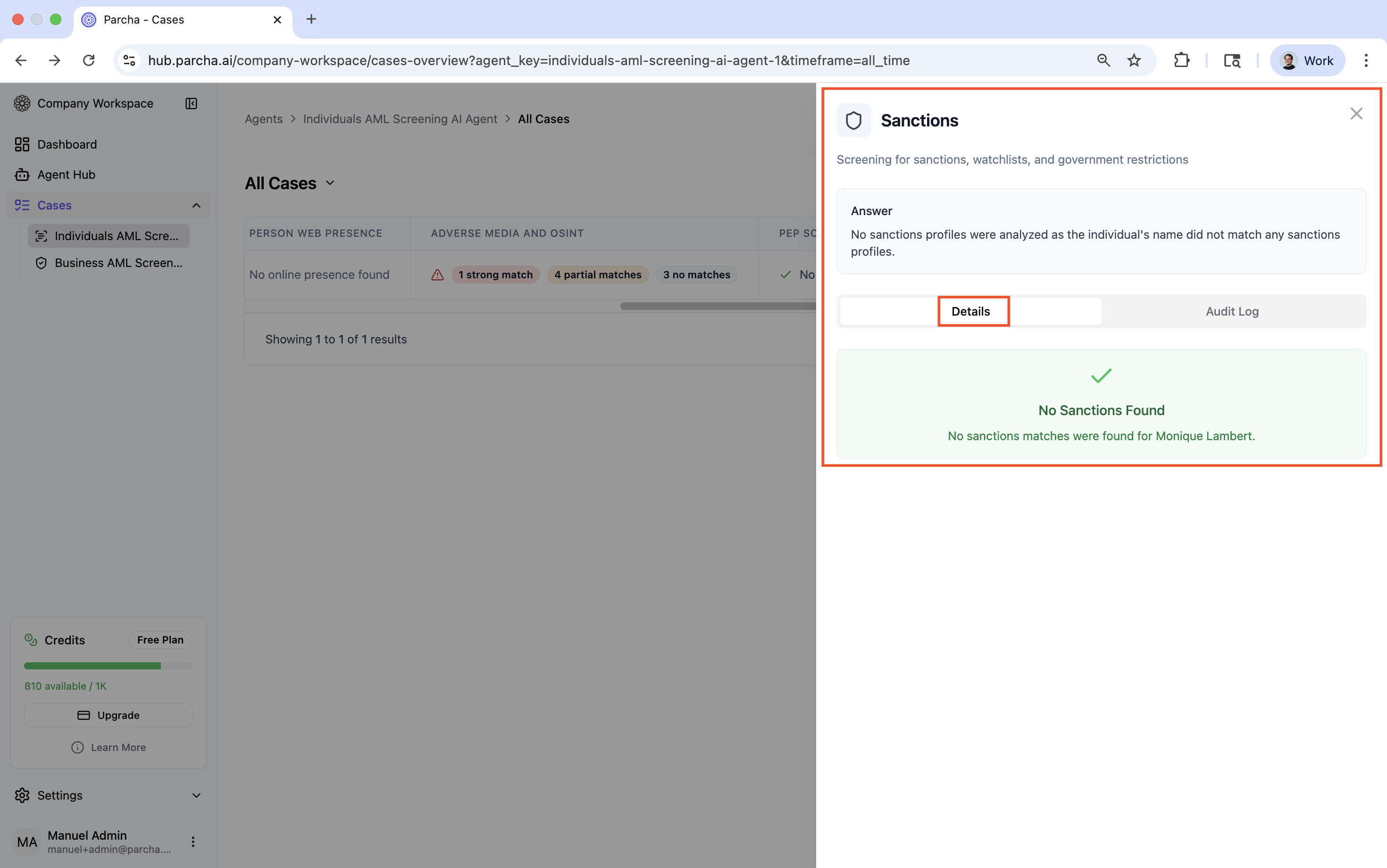
7.8 Click on Sanctions Screening to view results
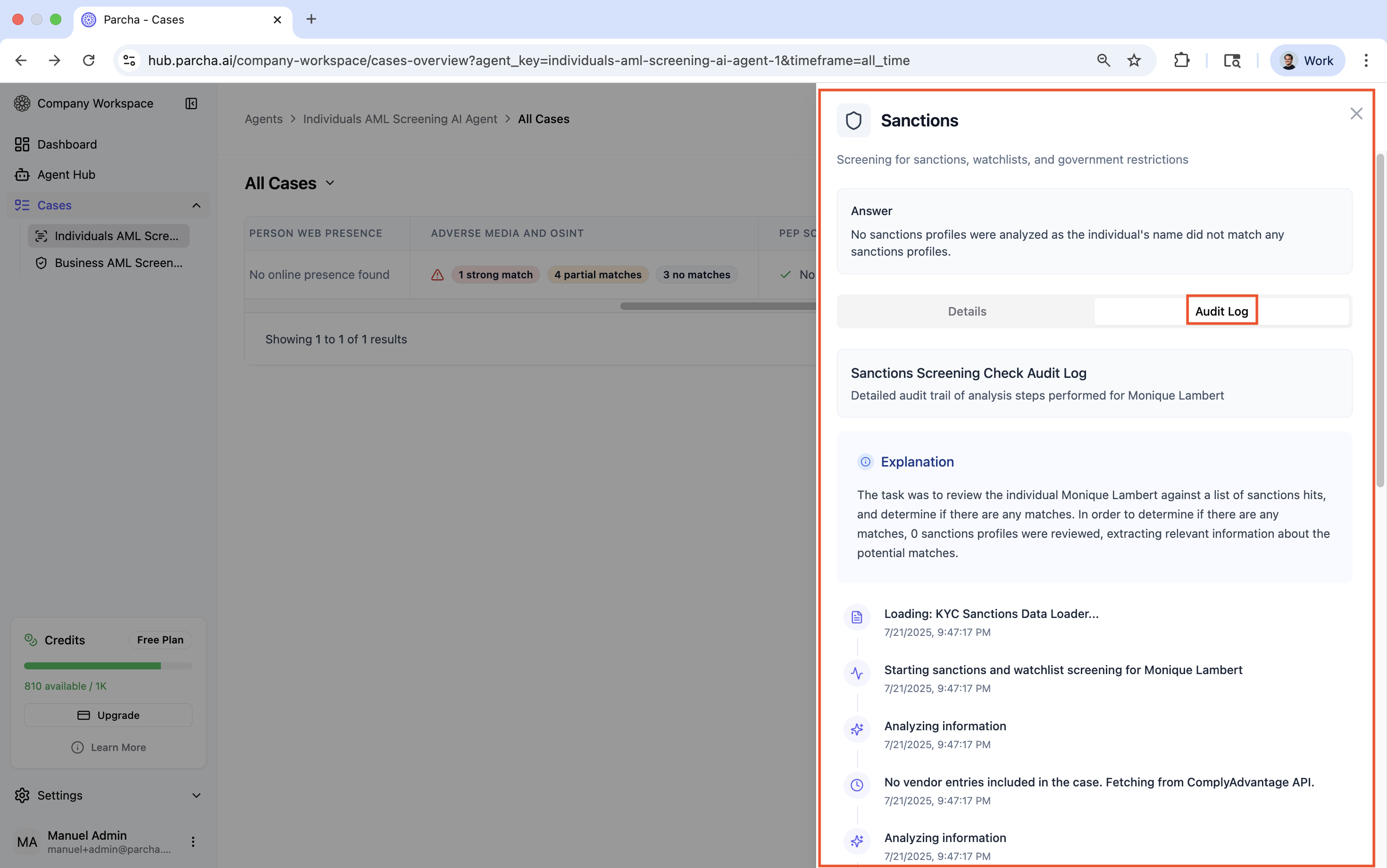
7.9 Export results in CSV format using the Actions dropdown.