Agent Access - Roles & Permissions
Last updated: May 21, 2025
Step 1 - Go to Settings
Click on the settings cog icon in the lower left corner
Step 2 - Select Your Agent
If you have Admin access to any of your company’s agents you will see them in the dropdown at the top of the page.

Step 3 - Invite Members
By clicking on the Add Members button in the upper right corner you will be prompted to provide an email for the member you would like to add.

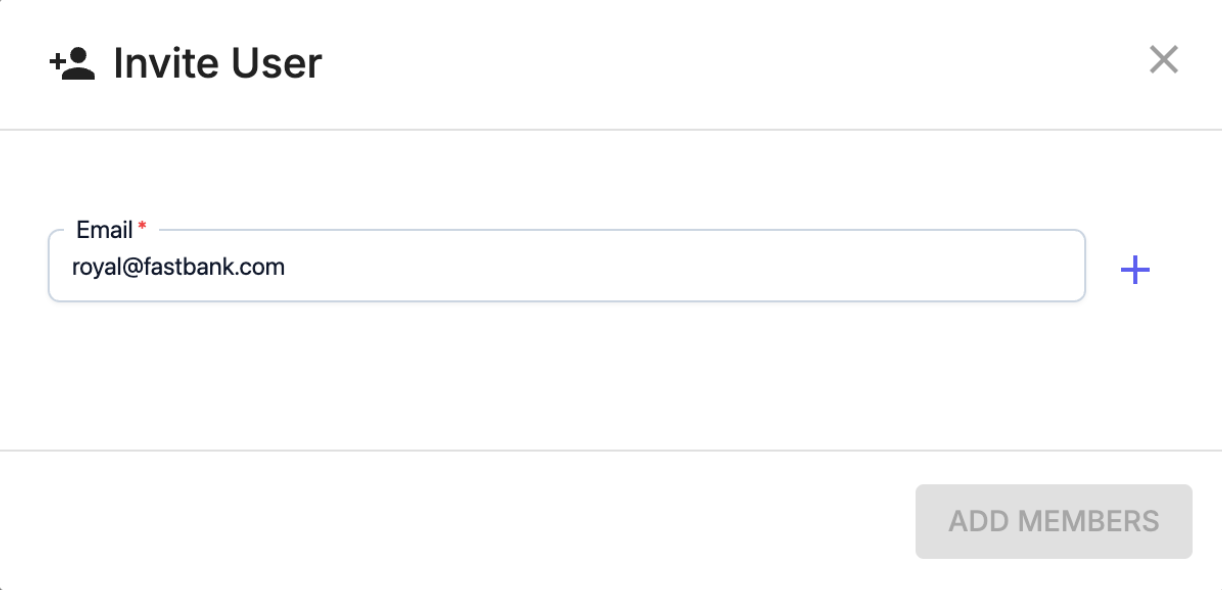
Enter in the company email address of the member you are adding and click the ‘+’ icon next to the Email input field.
You will now see that member’s email address added to a list of Members that will be added.
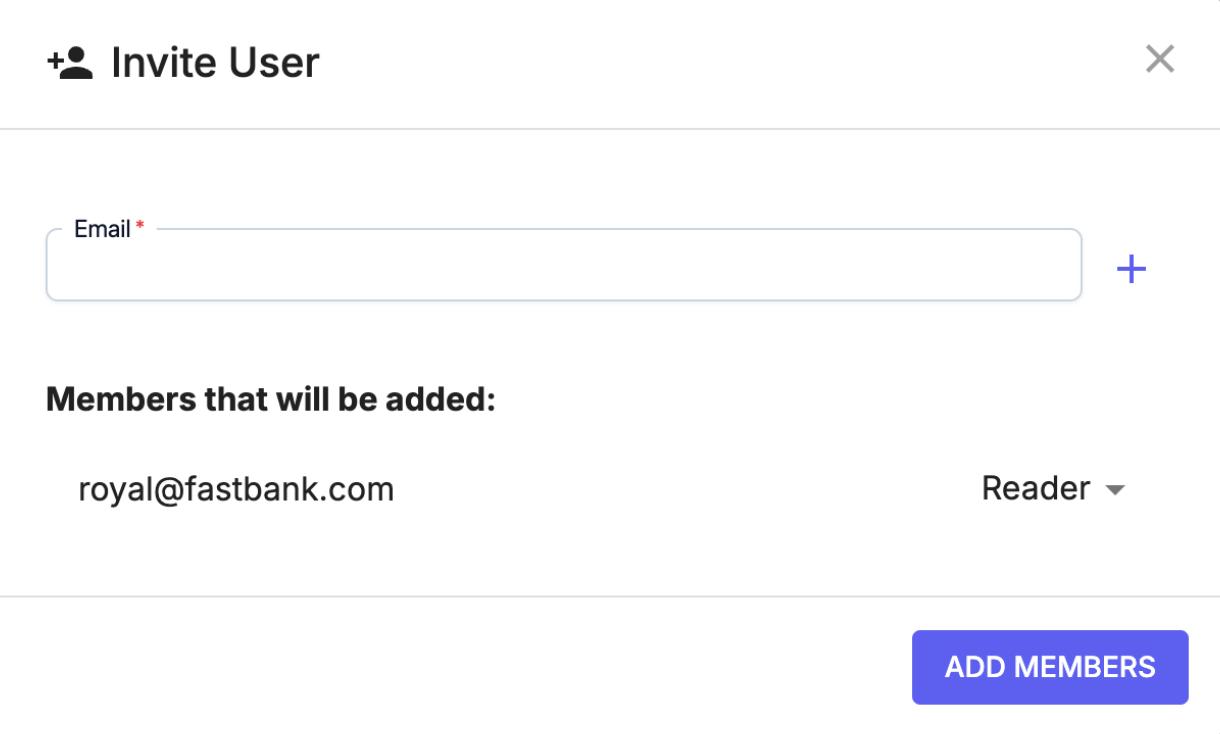
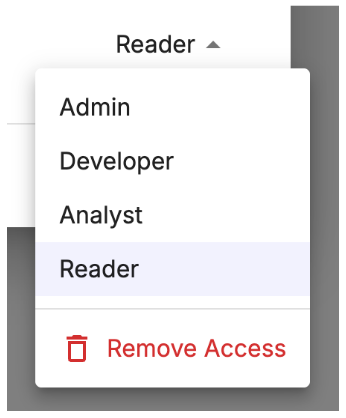
You will also see a dropdown/picklist where you can set the role of that member for this agent. The role options are:
Admin: All access including member management
Developer: API and configuration access
Analyst: Data analysis and reporting access
Reader: View and run case access
You can decide to add more members by entering another email address in the email field or you can complete the member invitation process by clicking the Add Members button.
Step 4 - Member Management
You will now see the email addresses of the members you have sent invites to, including their role and their status of Invited. For those that have accepted your invitation they will have the status of Active.
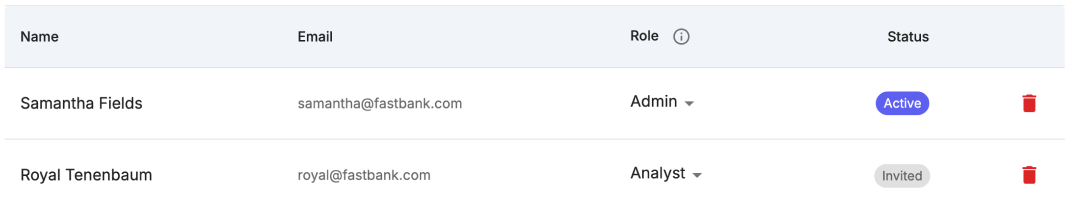
At any point in time you can change the status of any member as well as remove their access by clicking on their role dropdown.